First-time user guide

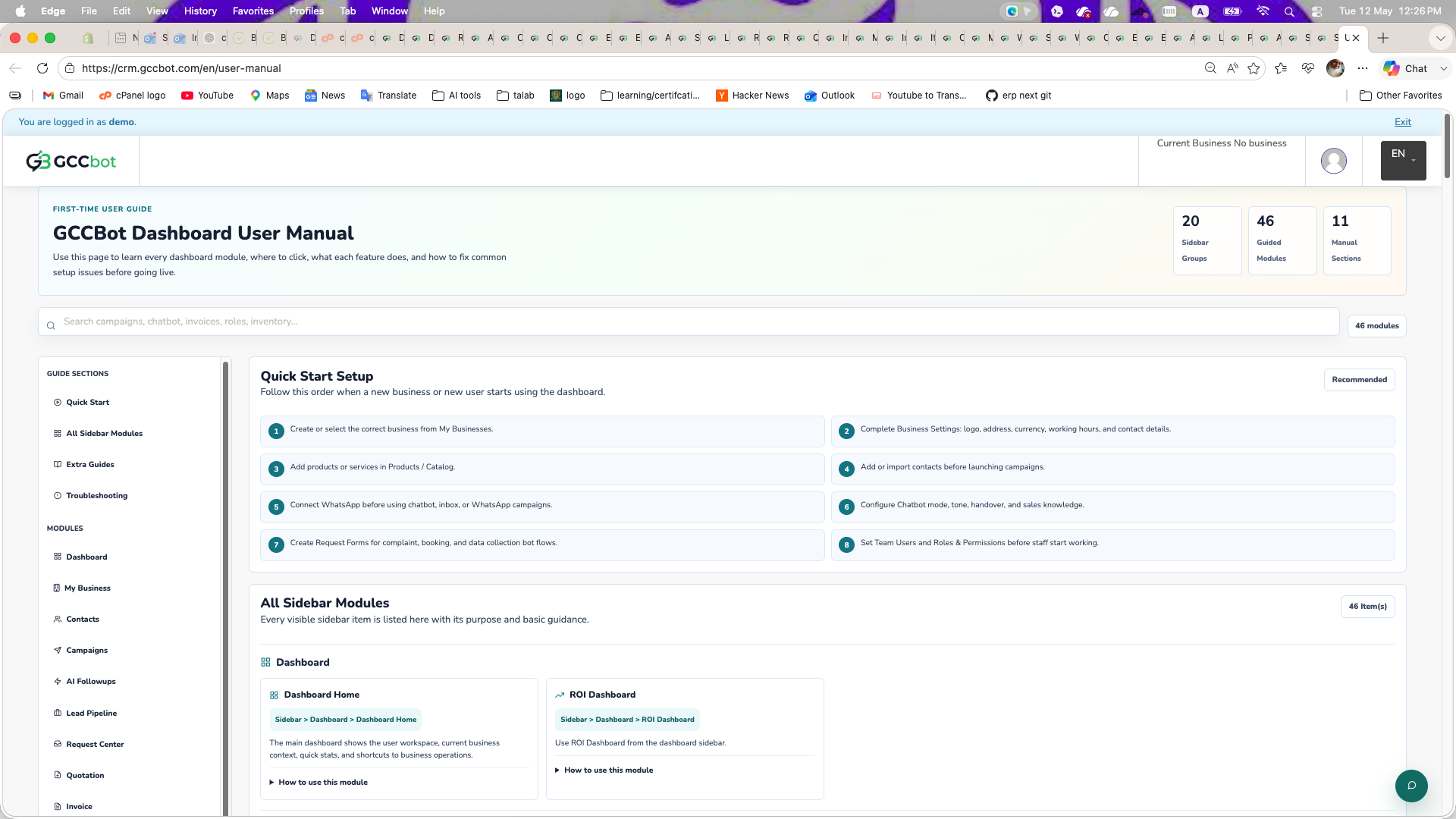
GCCBot Dashboard User Manual

Use this page to learn every dashboard module, where to click, what each feature does, and how to fix common setup issues before going live.

22 Sidebar Groups
52 Guided Modules
11 Manual Sections
52 modules

Quick Start Setup

Follow this order when a new business or new user starts using the dashboard.

مُستَحسَن
1 Create or select the correct business from My Businesses.
2 Complete Business Settings: logo, address, currency, working hours, and contact details.
3 Add products or services in Products / Catalog.
4 Add or import contacts before launching campaigns.
5 Connect WhatsApp before using chatbot, inbox, or WhatsApp campaigns.
6 Configure Chatbot mode, tone, handover, and sales knowledge.
7 Create Request Forms for complaint, booking, and data collection bot flows.
8 Set Team Users and Roles & Permissions before staff start working.

All Sidebar Modules

Every visible sidebar item is listed here with its purpose and basic guidance.

52 أغراض)

Command Center

Dashboard Home

Sidebar > Command Center > Dashboard Home
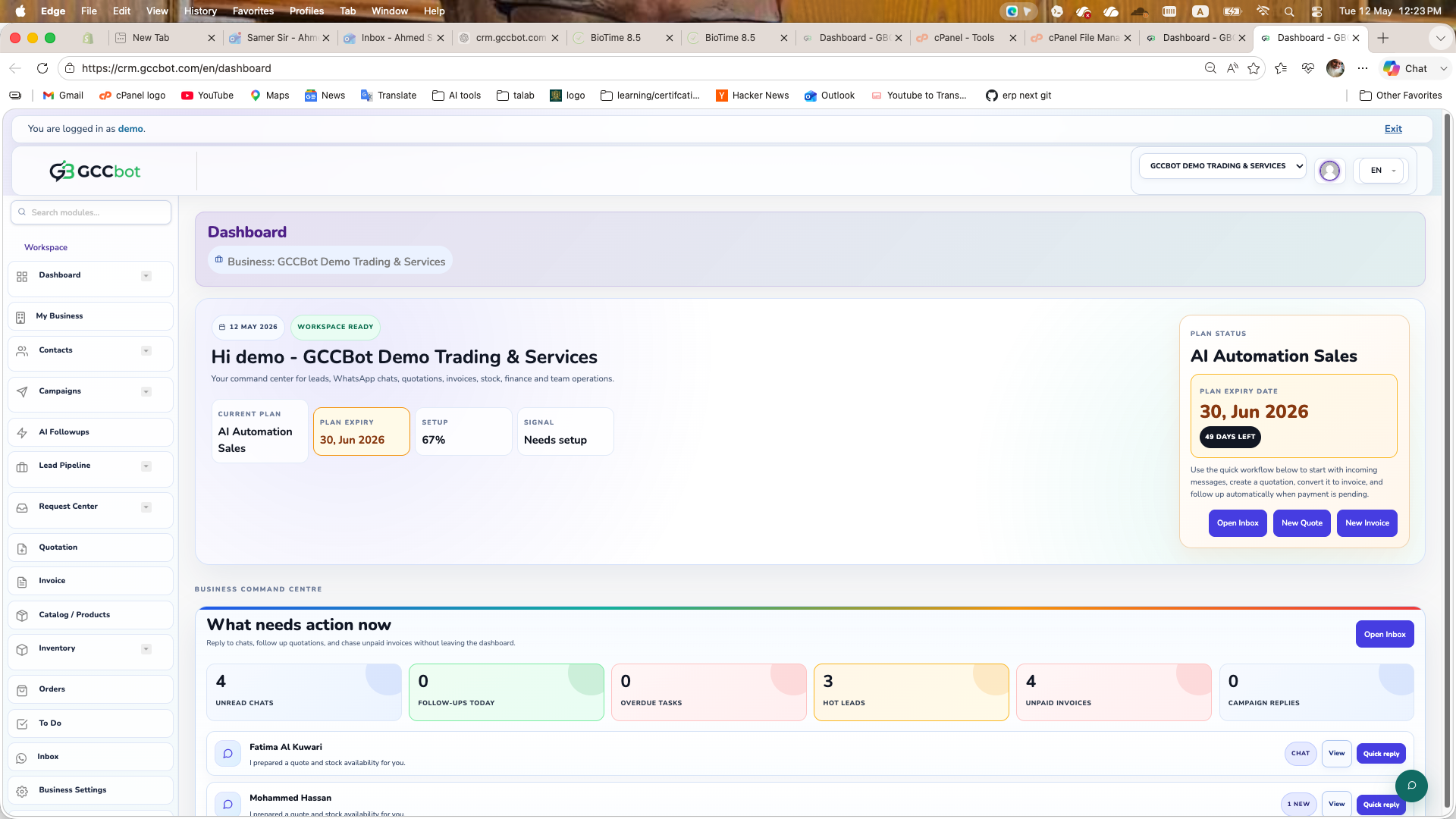
Dashboard Home dashboard screenshot
Screen preview

The main dashboard shows the user workspace, current business context, quick stats, and shortcuts to business operations.

How to use this module
Use Dashboard Home when users ask for the main screen, business overview, quick stats, or where to start.

How to guide users:
1. Open Dashboard from the sidebar.
2. Confirm the correct business is selected in the business switcher.
3. Use the visible cards and shortcuts to continue into contacts, catalog, orders, campaigns, or settings.

Common issue: if data looks wrong, ask the user to verify the current business context first.
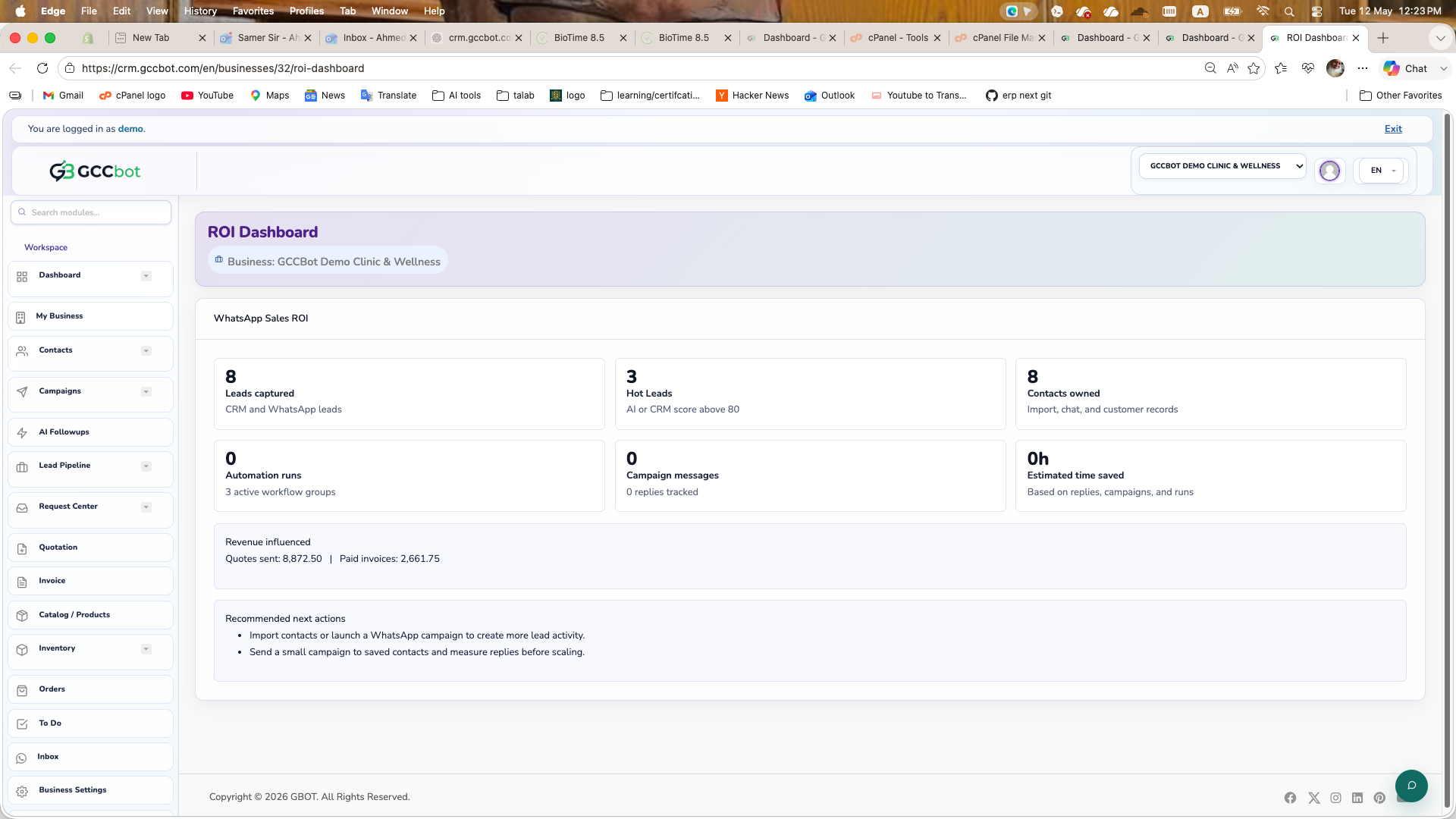
ROI Dashboard

Sidebar > Command Center > ROI Dashboard
ROI Dashboard dashboard screenshot
Screen preview

Use ROI Dashboard from the dashboard sidebar.

How to use this module
Where to go:
Sidebar > Command Center > ROI Dashboard.

Basic steps:
1. Open ROI Dashboard from the sidebar.
2. Select the correct business if the page asks for business context.
3. Review the available list, cards, or settings.
4. Create, edit, manage, or report from the available page actions according to your role permissions.

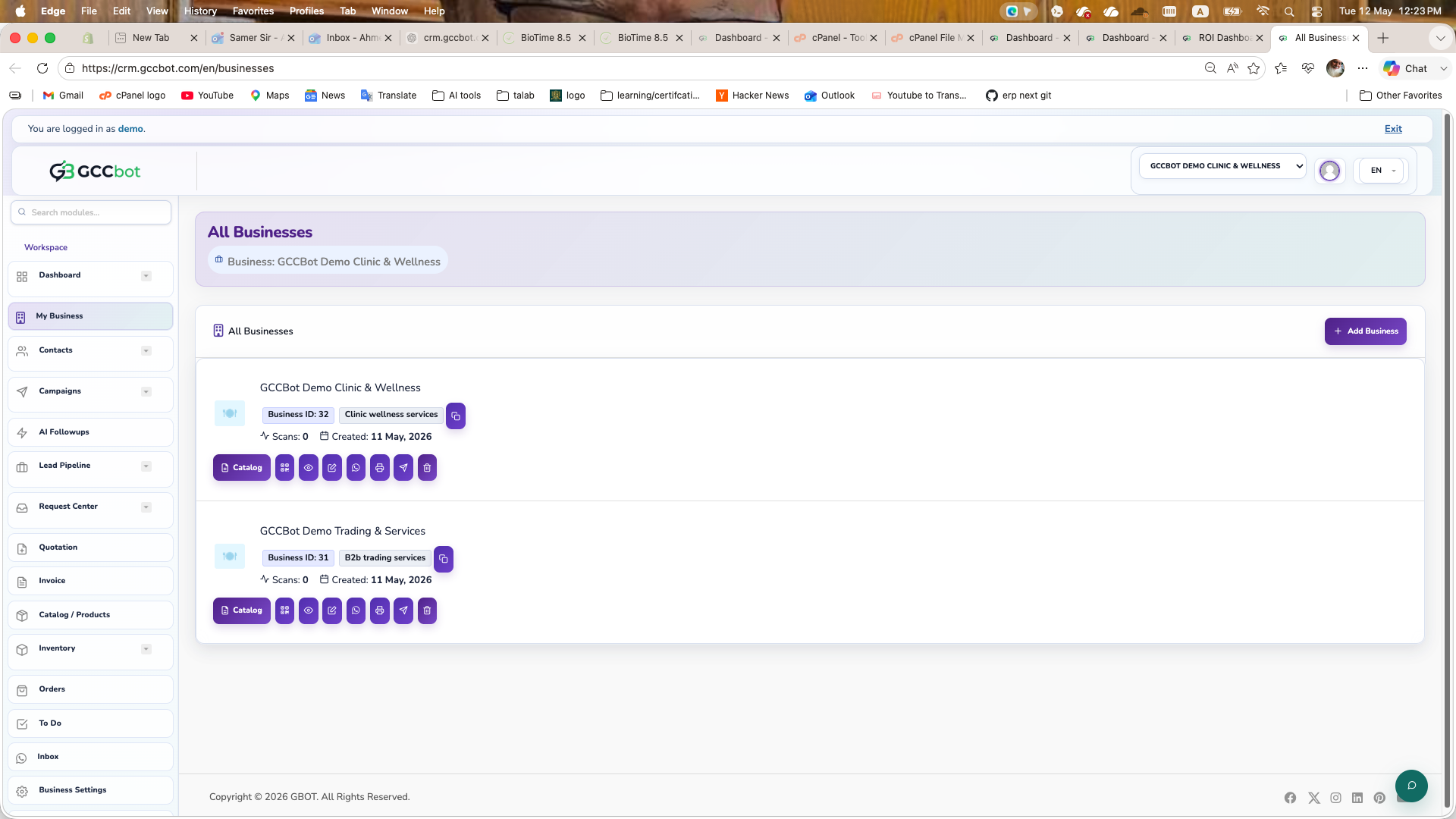
My Business

My Businesses

Sidebar > My Business > My Businesses
My Businesses dashboard screenshot
Screen preview

Create, edit, select, and manage business workspaces.

How to use this module
Use My Businesses when users ask how to add a business, switch businesses, edit business profile basics, or manage multiple businesses.

Steps:
1. Open My Businesses.
2. Create a new business or edit an existing one.
3. Set business name, type, contact details, address, logo, and working information.
4. Select the correct business before adding catalog, contacts, campaigns, or chatbot setup.

Common issue: data is separated by business, so missing products or contacts usually means the wrong business is selected.

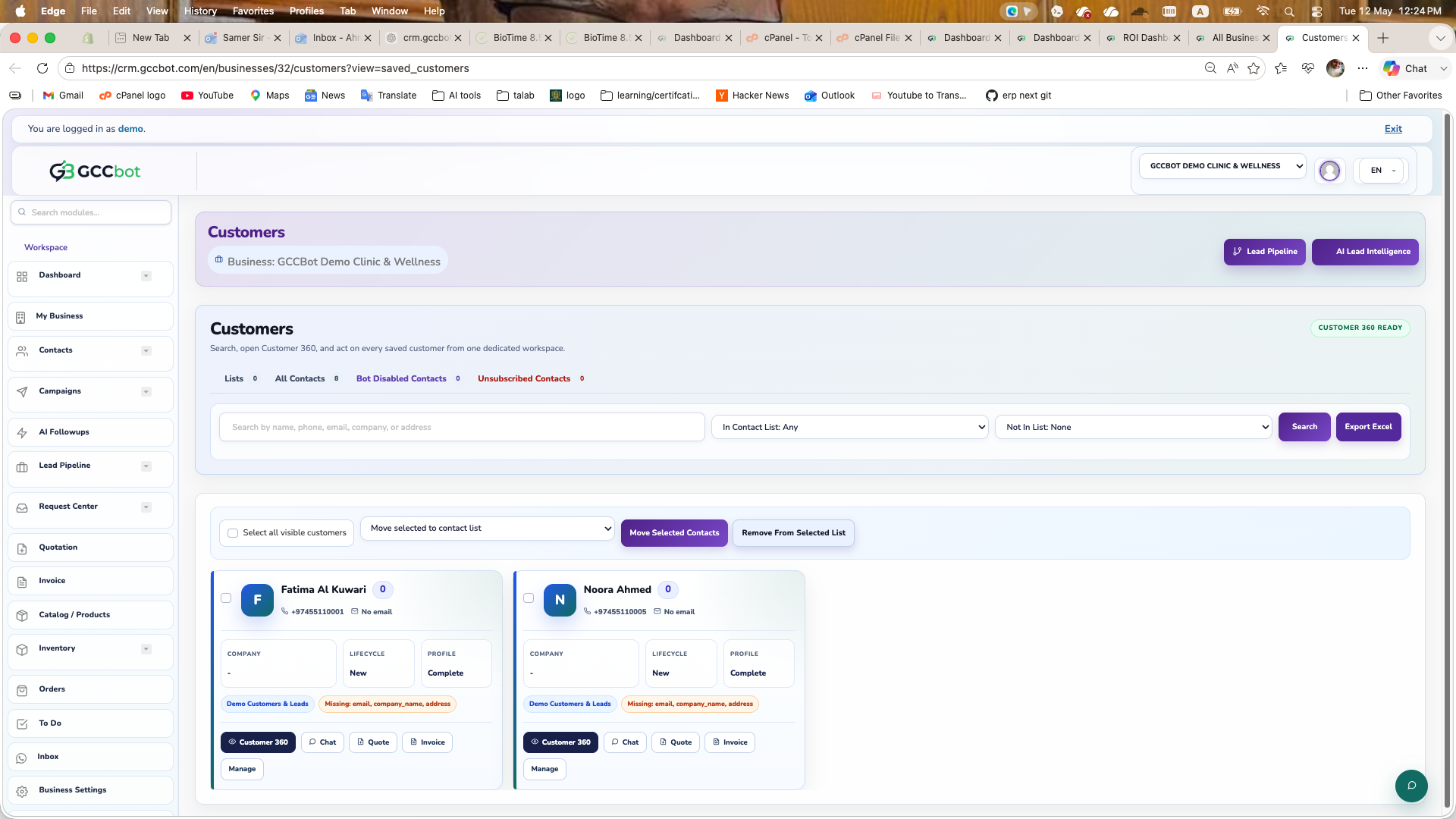
Sales CRM

Customers

Sidebar > Sales CRM > Customers
Customers dashboard screenshot
Screen preview

Manage customer records connected to contacts, WhatsApp conversations, orders, bookings, and CRM workflows.

How to use this module
Use Customers when users ask about customer records, B2C customers, customer profiles, customer WhatsApp chat, or customer history.

Steps:
1. Open Contacts and choose Customers where available, or open the customer list from related CRM workflows.
2. Search for the customer by name or phone.
3. Open the customer profile to review contact data, WhatsApp chat, orders, bookings, and notes.
4. Use WhatsApp Chat to continue the conversation where available.

Common issue: Customers are usually created from contacts or order/booking flows, so if a customer is missing check Contacts first.
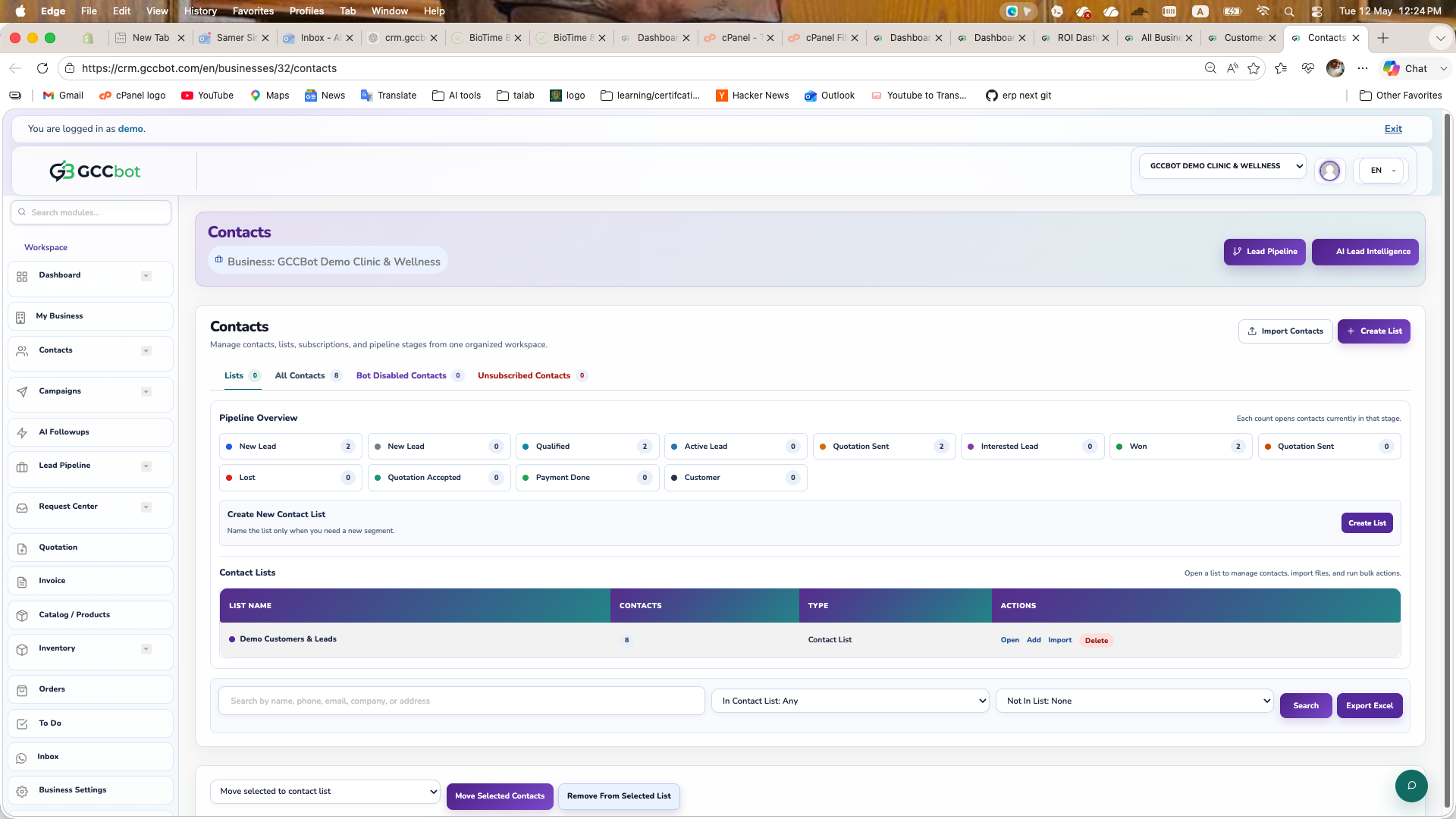
Contacts

Sidebar > Sales CRM > Contacts
Contacts dashboard screenshot
Screen preview

Manage contacts, customers, phone numbers, tags, profile data, and WhatsApp chat access.

How to use this module
Use Contacts when users ask about adding customers, viewing WhatsApp contacts, tagging contacts, assigning contacts, importing contacts, or disabling bot replies for selected contacts.

Typical tasks:
1. Open Contacts.
2. Search or filter the contact list.
3. Open a contact profile to view details, notes, WhatsApp chat, tags, and lead/customer status.
4. Use bulk actions for moving, removing, or grouping contacts.

Related pages: Customers and Phone Books may be hidden in navigation but are available from contact workflows and campaign targeting.

WhatsApp & Marketing

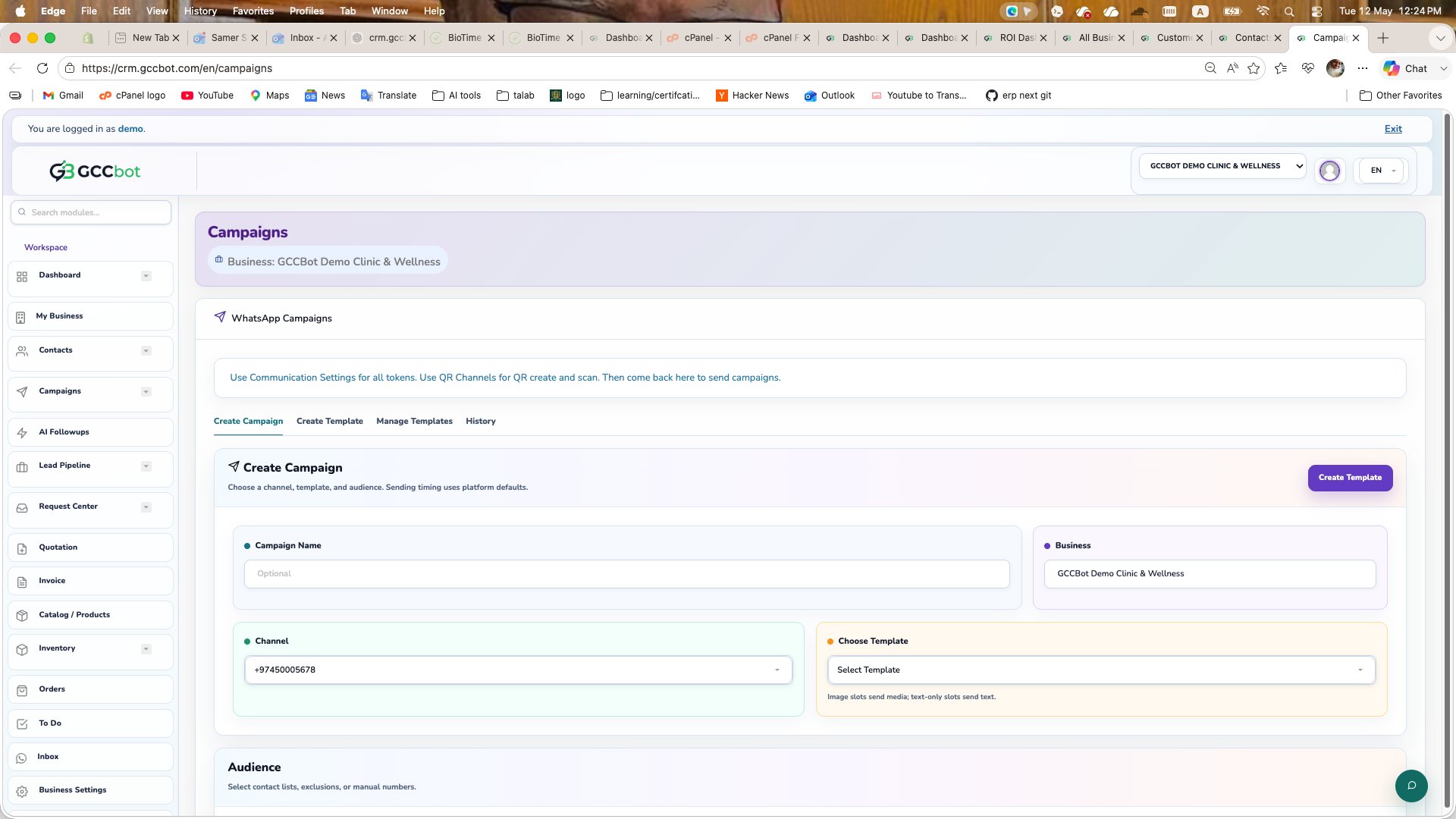
Campaigns

Sidebar > WhatsApp & Marketing > Campaigns
Campaigns dashboard screenshot
Screen preview

Create and manage WhatsApp broadcast campaigns using selected audiences and templates/messages.

How to use this module
Use Campaigns when users ask how to send WhatsApp broadcasts, announcements, offers, or fixed marketing messages.

Steps:
1. Open Campaigns.
2. Choose or create a campaign.
3. Select the audience, normally from phone books.
4. Prepare the message/template and preview it.
5. Send a test if available, then launch.
Common issues:
- No audience: create a phone book and add contacts.
- Sending fails: check WhatsApp channel connection and recent WhatsApp logs.
- Template missing: sync or configure WhatsApp templates.

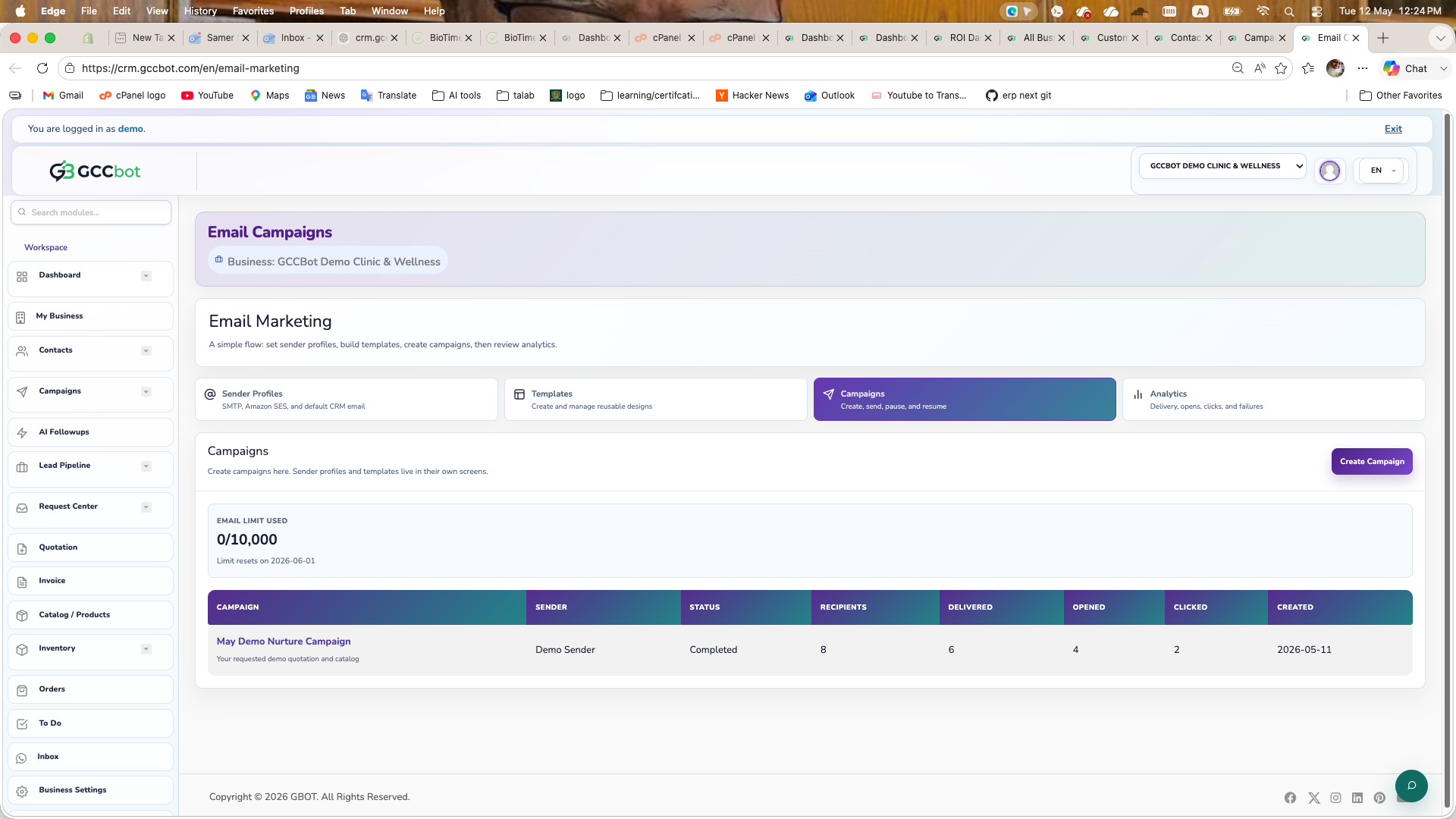
Email Marketing

Sidebar > WhatsApp & Marketing > Email Marketing
Email Marketing dashboard screenshot
Screen preview

Use Email Marketing from the dashboard sidebar.

How to use this module
Where to go:
Sidebar > WhatsApp & Marketing > Email Marketing.

Basic steps:
1. Open Email Marketing from the sidebar.
2. Select the correct business if the page asks for business context.
3. Review the available list, cards, or settings.
4. Create, edit, manage, or report from the available page actions according to your role permissions.

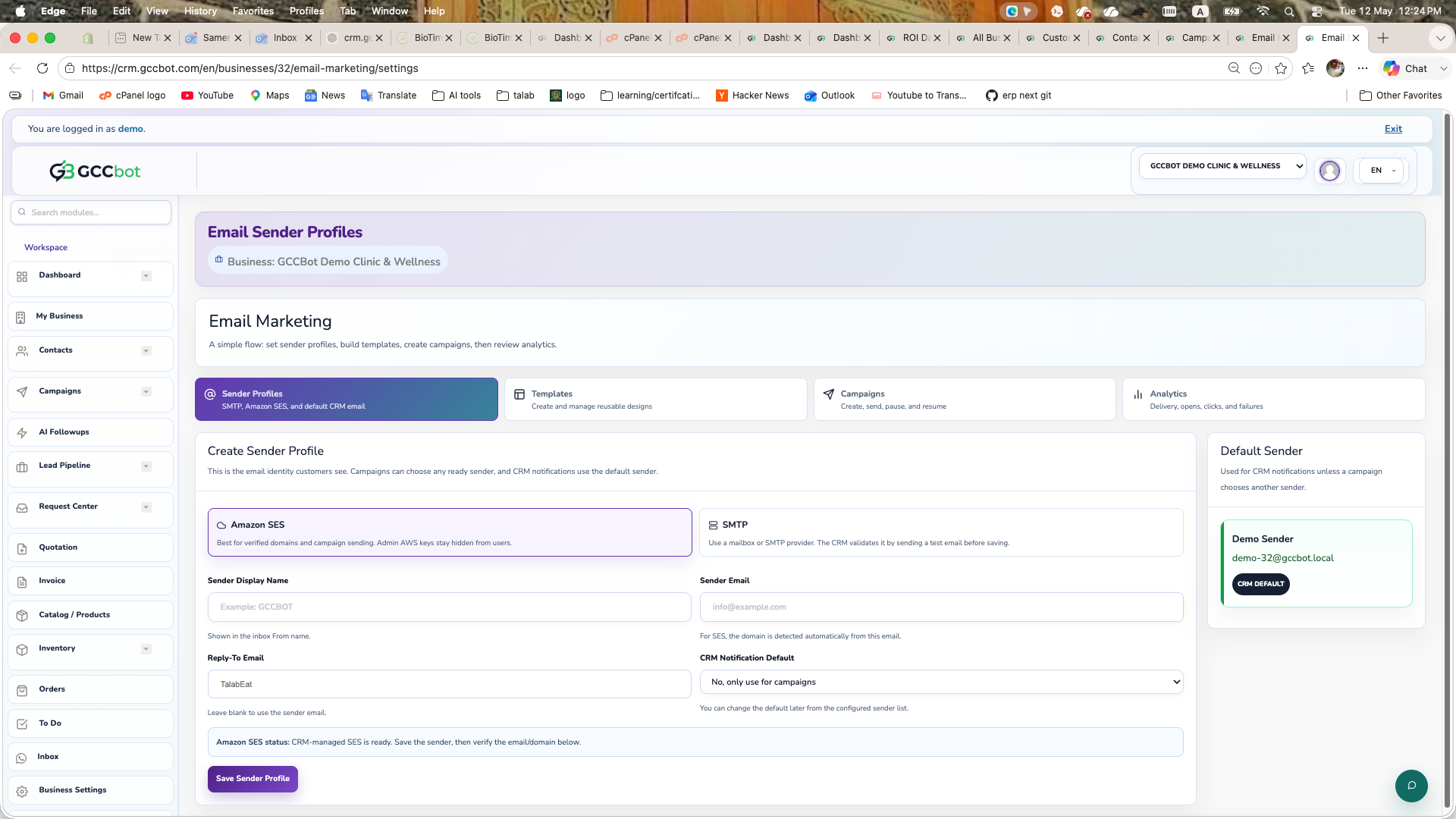
Email Senders

Sidebar > WhatsApp & Marketing > Email Senders
Email Senders dashboard screenshot
Screen preview

Use Email Senders from the dashboard sidebar.

How to use this module
Where to go:
Sidebar > WhatsApp & Marketing > Email Senders.

Basic steps:
1. Open Email Senders from the sidebar.
2. Select the correct business if the page asks for business context.
3. Review the available list, cards, or settings.
4. Create, edit, manage, or report from the available page actions according to your role permissions.

AI Follow-ups

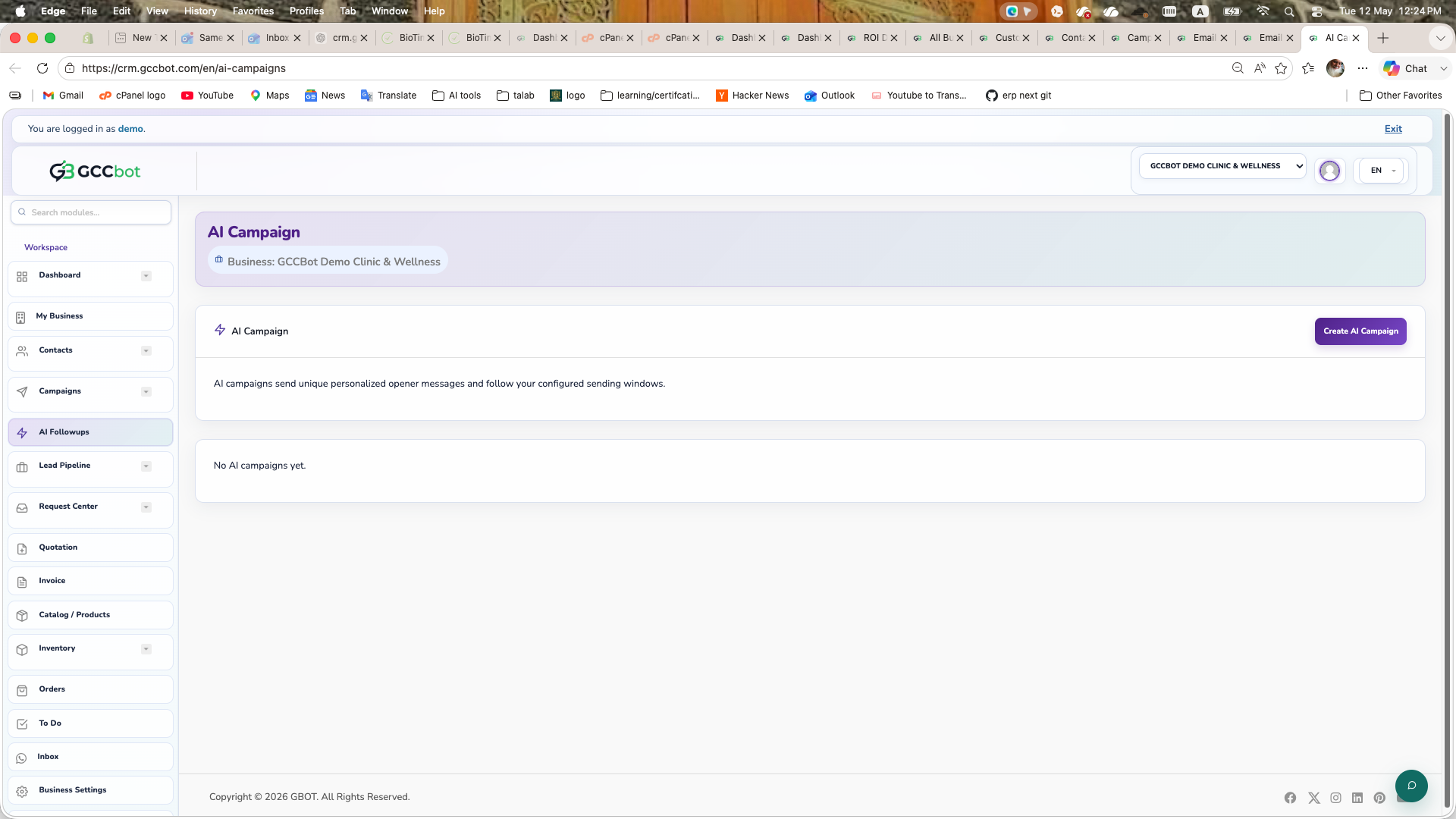
AI Followups

Sidebar > AI Follow-ups > AI Followups
AI Followups dashboard screenshot
Screen preview

Run AI-assisted campaign followups with personalization, objectives, and engagement tracking.

How to use this module
Use AI Followups when users ask about AI campaigns, smart follow-up messages, personalized outreach, or automated campaign sequencing.

Steps:
1. Open AI Followups.
2. Create a campaign objective and choose audience.
3. Review the AI generated opener/follow-up messages.
4. Launch, pause, resume, cancel, or review engagement reports.

Production checks: AI provider must be configured, the business plan must allow AI WhatsApp, and the selected audience must have valid contacts.

Business Setup

Website

Sidebar > Business Setup > Website

Use Website from the dashboard sidebar.

How to use this module
Where to go:
Sidebar > Business Setup > Website.

Basic steps:
1. Open Website from the sidebar.
2. Select the correct business if the page asks for business context.
3. Review the available list, cards, or settings.
4. Create, edit, manage, or report from the available page actions according to your role permissions.

Sales Pipeline

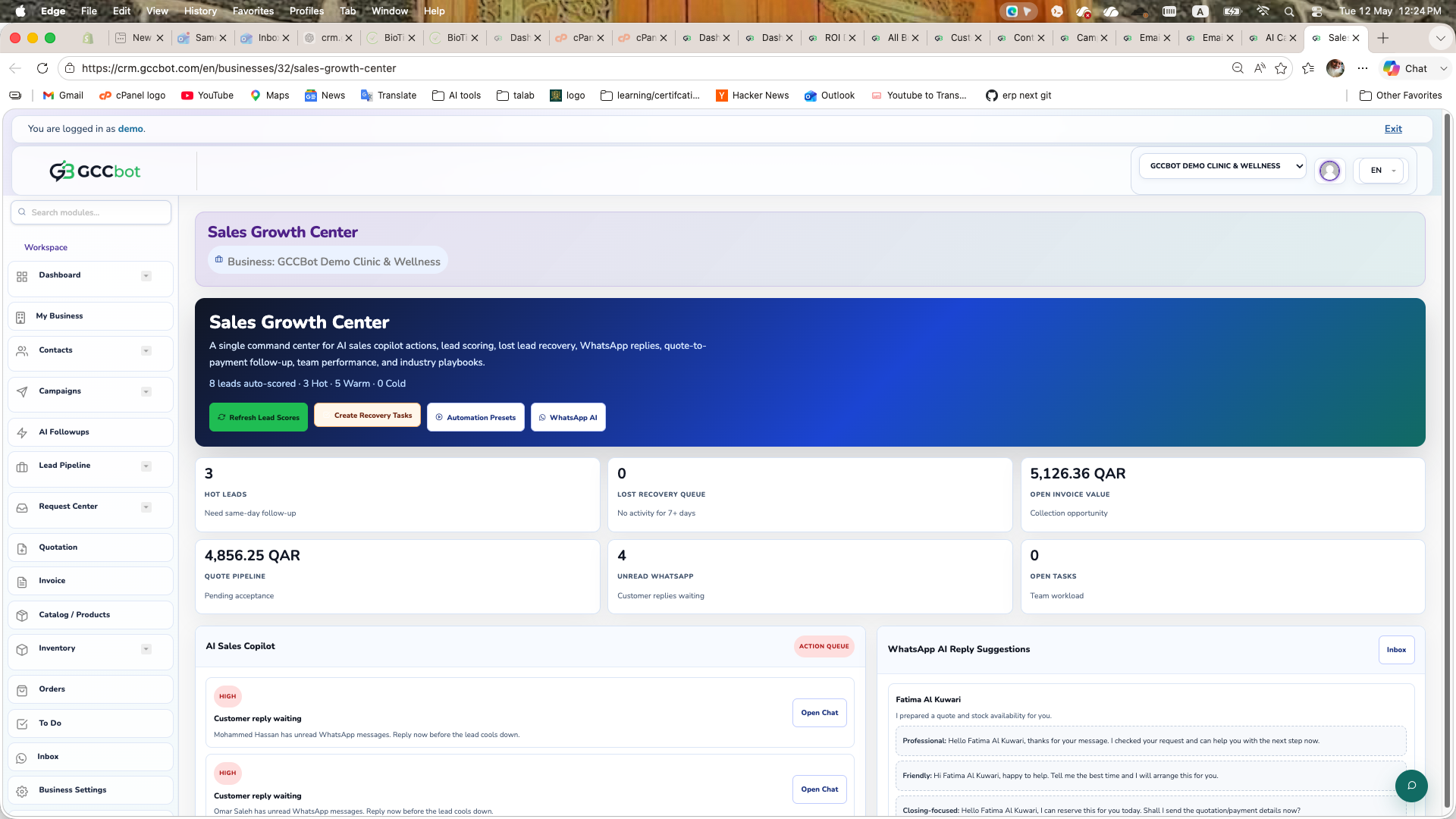
Sales Growth Center

Sidebar > Sales Pipeline > Sales Growth Center
Sales Growth Center dashboard screenshot
Screen preview

Use Sales Growth Center from the dashboard sidebar.

How to use this module
Where to go:
Sidebar > Sales Pipeline > Sales Growth Center.

Basic steps:
1. Open Sales Growth Center from the sidebar.
2. Select the correct business if the page asks for business context.
3. Review the available list, cards, or settings.
4. Create, edit, manage, or report from the available page actions according to your role permissions.

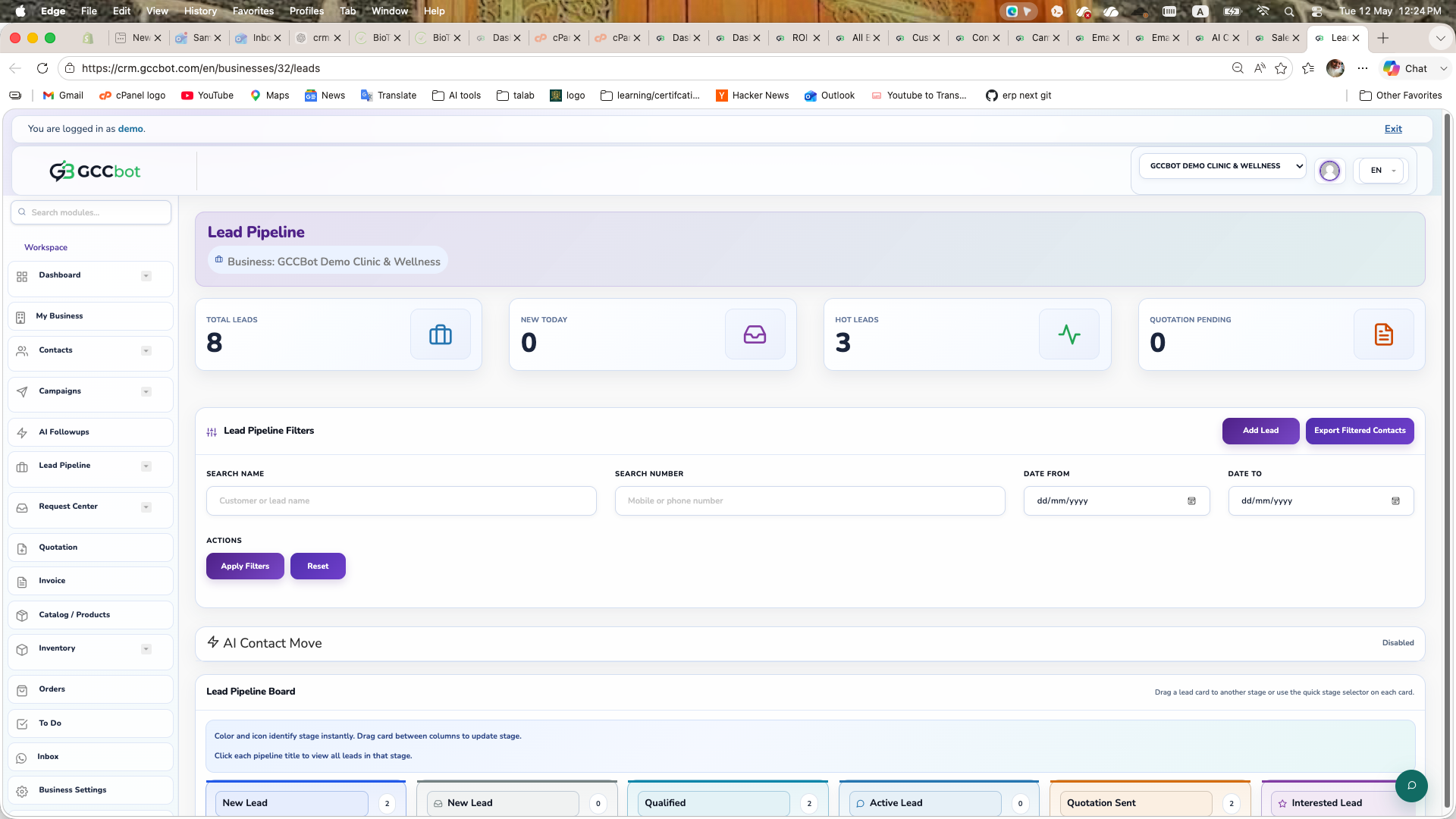
Lead Pipeline

Sidebar > Sales Pipeline > Lead Pipeline
Lead Pipeline dashboard screenshot
Screen preview

Track leads through stages, notes, assignments, followups, and CRM actions.

How to use this module
Use Lead Pipeline when users ask where to manage leads, sales pipeline, opportunities from WhatsApp, lead movement, or follow-up status.

Steps:
1. Open Lead Pipeline.
2. Create or import leads.
3. Move leads between stages as conversations progress.
4. Add notes, assign team members, update status, and review lead details.

Related tools: AI Lead Intelligence can summarize and score leads when enabled.

Operations

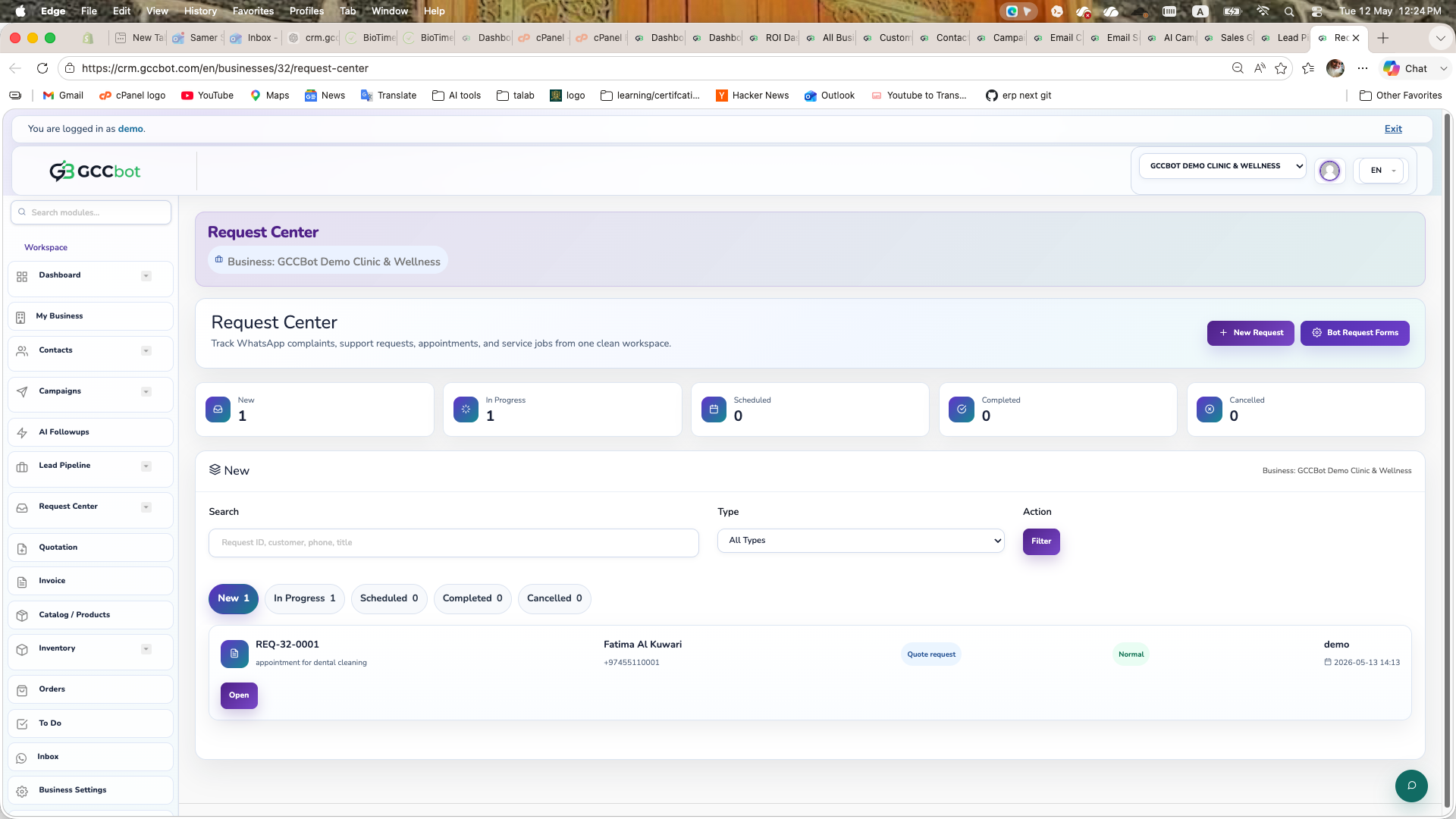
Request Center

Sidebar > Operations > Request Center
Request Center dashboard screenshot
Screen preview

Create WhatsApp request forms, collect customer service requests, and manage every request from Request Center with customer and lead links.

How to use this module
Use Request Center when users ask about service requests, support tickets, complaint registration, repair requests, appointment/service visit requests, or how to collect structured details from WhatsApp.

What it does:
- Request Center is the staff workspace for submitted requests.
- Bot Request Forms defines the questions customers answer in WhatsApp.
- Active forms with Show in WhatsApp enabled appear in the WhatsApp bot menu.
- Submitted requests are saved with request number, status, priority, customer details, linked contact, linked lead, conversation, optional booking, answers, notes, and status history.

Full setup flow:
1. Open Request Center to view incoming requests by status: New, In Progress, Scheduled, Completed, or Cancelled.
2. Open Bot Request Forms from Request Center.
3. Create Form or edit an existing form.
4. Set form name, WhatsApp menu label, request type, active status, Show in WhatsApp, priority, assignee, notification numbers, and appointment/slot settings if needed.
5. Add questions in the correct order. Use Save As carefully: customer_name for real full name, customer_phone for contact number, customer_email for email, summary for the issue/request, address for site/location, preferred_date and preferred_time for scheduling, or custom for extra details.
6. Save the form and keep it Active plus Show in WhatsApp enabled if customers should see it in the bot menu.
7. In WhatsApp, the customer chooses the menu option such as Service Request, Register Complaint, or Book Appointment. The bot asks each question, validates name/phone/email, then creates the request.
8. Staff open Request Center, review the request details, answers, linked contact/lead, status logs, notes, schedule, and assignment.
9. Update status as work progresses. Use notes for internal/customer-visible updates.
10. From Contact or Lead detail pages, use Service Requests / Request Center links to open linked request details in one click.

How to make a form appear in WhatsApp:
- The form must belong to the selected business.
- The form must be Active.
- Show in WhatsApp must be enabled.
- The business must have the WhatsApp bot/menu flow enabled.
- Customers may need to type 0 or open the main menu again to see refreshed options.

Recommended service request fields:
- Full name saved as customer_name.
- Contact mobile number saved as customer_phone.
- Email saved as customer_email when required by the business.
- Company/site name saved as custom.
- Service or product affected saved as custom or select.
- Request summary saved as summary.
- Site address saved as address.
- Preferred visit date/time saved as preferred_date and preferred_time.
- Urgency or category saved as custom/select.

Operational rules:
- Do not save random message text as customer name. Only real full names pass validation.
- Name, phone, and email from service request answers update the linked contact and lead when valid.
- Every service request should be indexed under the customer/contact and lead when those records exist.
- Request Center is the single place to open request details regardless of whether the user starts from Inbox, Contact, Lead, or Request Center.

Troubleshooting:
- Form not visible in WhatsApp: check Active, Show in WhatsApp, business context, and bot/menu setup.
- Request created but no customer name: the answer was missing or failed real-name validation.
- Request not linked to lead: make sure the WhatsApp conversation/contact already has a lead, or open the request/customer and confirm contact/lead data.
- No notification: check notify numbers on the form and WhatsApp channel status.
- Appointment not scheduled: appointment must be enabled and preferred date must be valid.

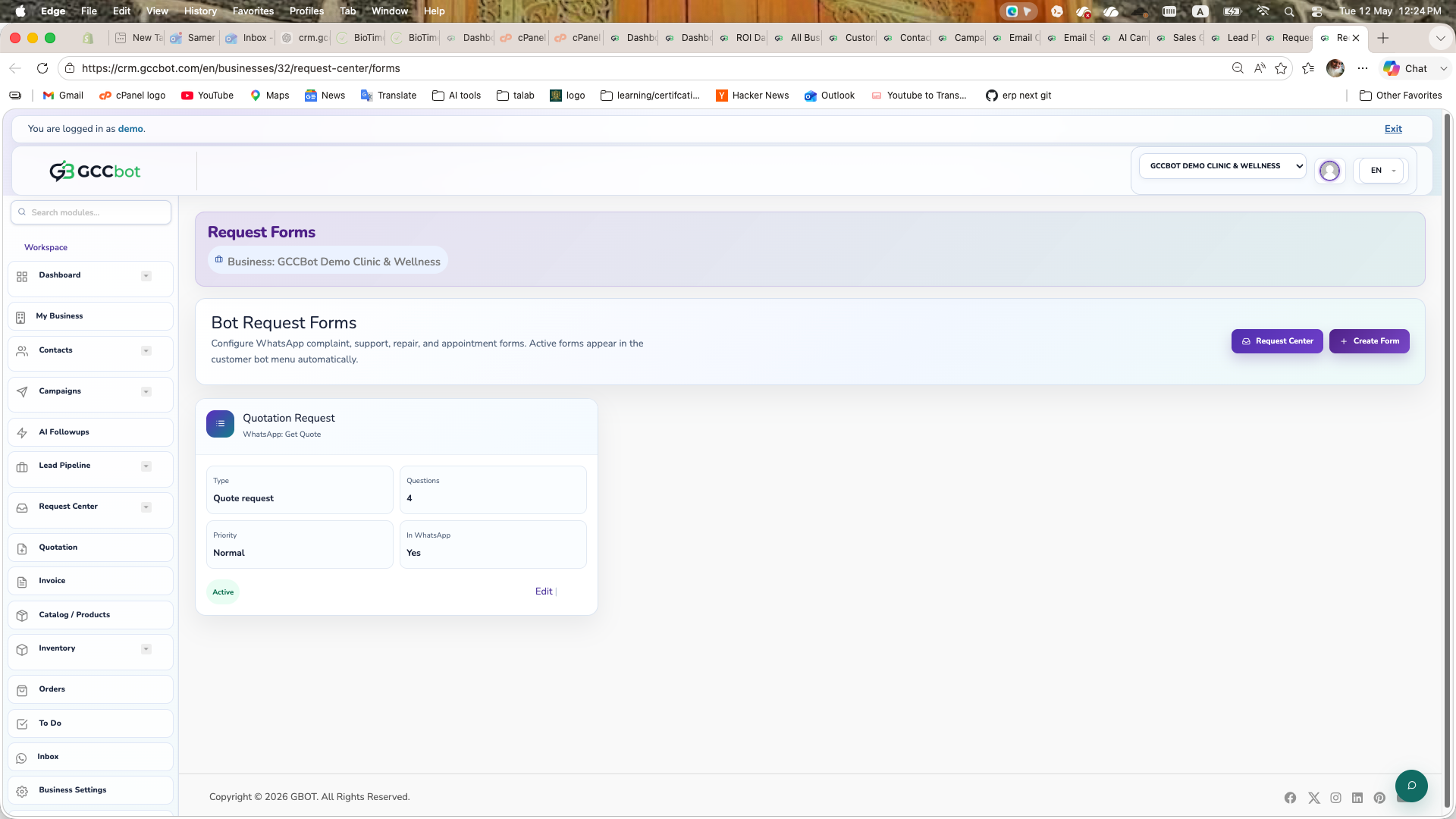
Bot Request Forms

Sidebar > Operations > Bot Request Forms
Bot Request Forms dashboard screenshot
Screen preview

Build and manage WhatsApp forms that feed structured service, complaint, support, and appointment requests into Request Center.

How to use this module
Use Bot Request Forms when the user specifically asks how to create or edit forms for WhatsApp Request Center.

Steps:
1. Open Bot Request Forms.
2. Click Create Form.
3. Enter form name and menu label. The menu label is what customers see in WhatsApp.
4. Choose request type such as service_request, complaint, support, appointment, repair, or quotation_request.
5. Keep Active enabled when the form should be usable.
6. Enable Show in WhatsApp when the form should appear in the bot menu.
7. Choose default priority and assigned user if the team wants automatic routing.
8. Add notify numbers if managers should receive WhatsApp alerts for new requests.
9. Enable appointment settings only when the form should create scheduled visits/bookings.
10. Add questions and choose Save As mapping: customer_name, customer_phone, customer_email, summary, address, preferred_date, preferred_time, or custom.
11. Save the form, then test from WhatsApp by opening the main menu and selecting the form label.

Best practice: every service request form should ask real full name, contact mobile number, email when needed, service/problem summary, site address, urgency/category, and preferred visit date/time.

If the form does not appear in WhatsApp, check Active, Show in WhatsApp, WhatsApp channel, and bot/menu setup.

Quotations

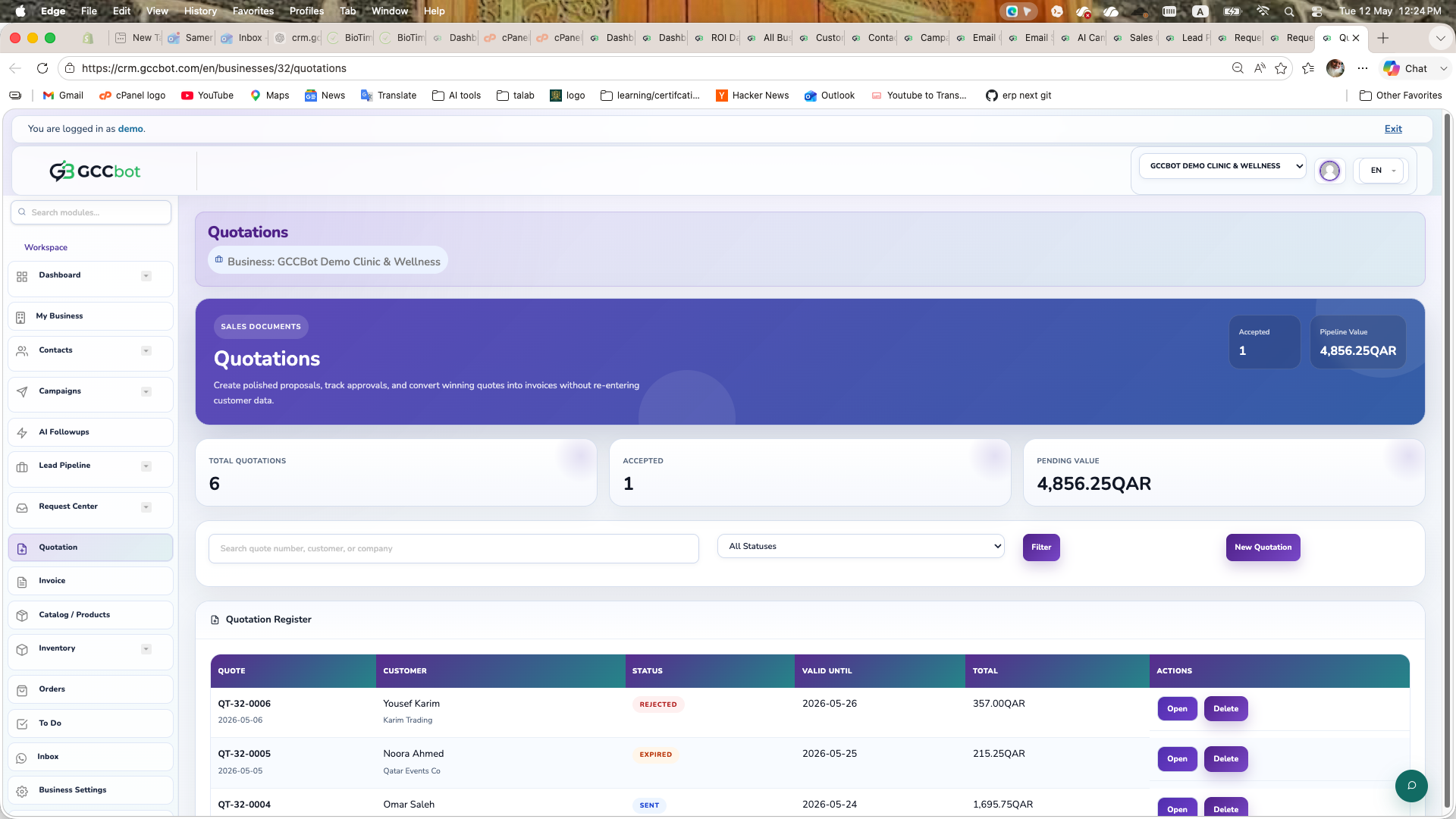
Quotations

Sidebar > Quotations > Quotations
Quotations dashboard screenshot
Screen preview

Create, edit, send, and manage customer quotations.

How to use this module
Use Quotations when users ask how to create a quote, send quotation by WhatsApp, convert sales discussion into a formal quote, or manage quote documents.

Steps:
1. Open Quotations.
2. Create a quotation for a customer/contact.
3. Add line items from catalog or manual entries.
4. Review totals, branding, terms, and status.
5. Send by supported channels such as WhatsApp if plan allows.

Common issue: if the page is hidden or redirects to subscription, the plan may not include quotations.

Invoices

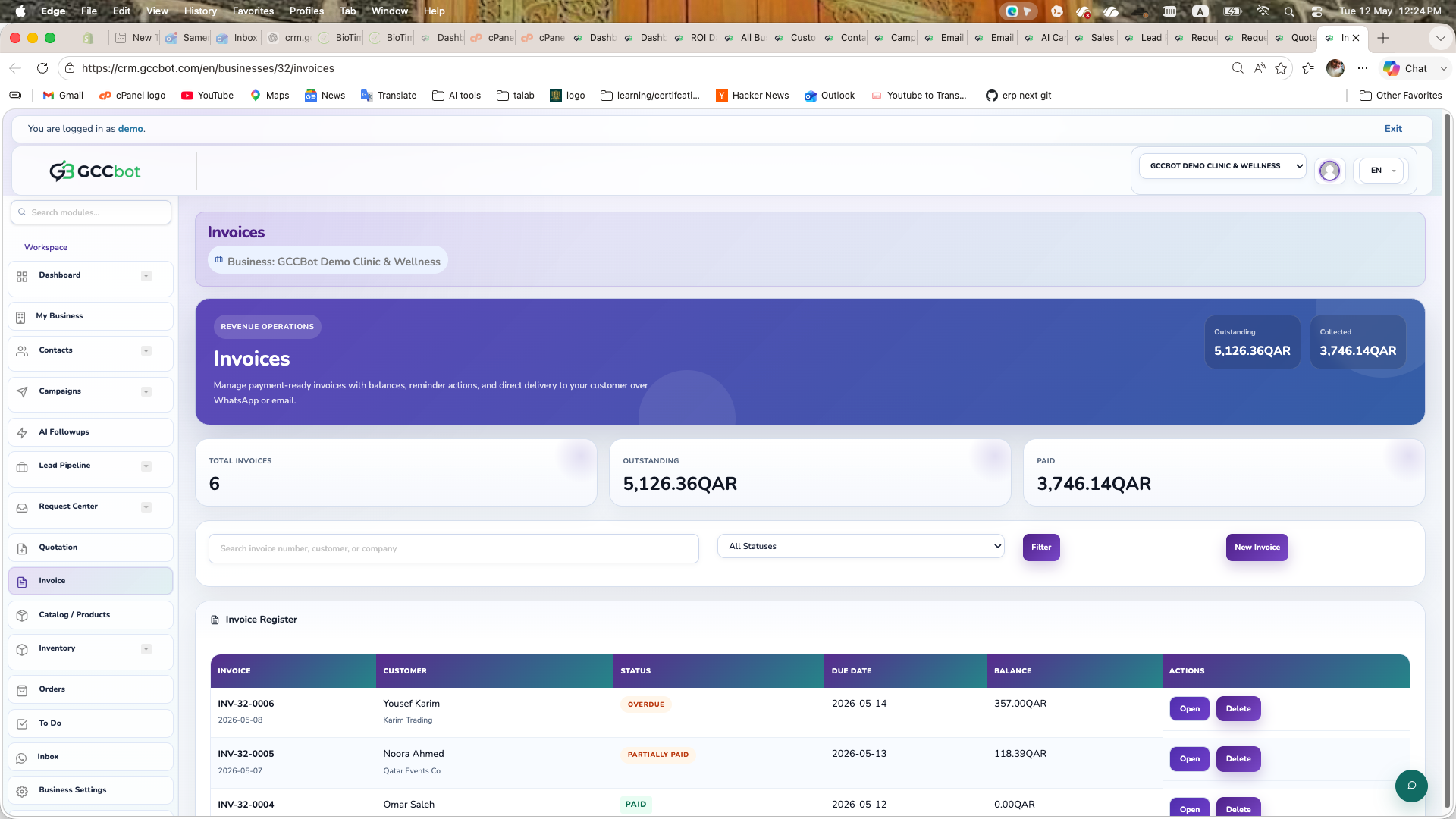
Invoices

Sidebar > Invoices > Invoices
Invoices dashboard screenshot
Screen preview

Create invoices, manage invoice items, send invoices, and track billing documents.

How to use this module
Use Invoices when users ask how to invoice a customer, send invoice by WhatsApp, edit invoice template, or manage billing records.

Steps:
1. Open Invoices.
2. Create an invoice and choose customer/contact.
3. Add products/services or custom line items.
4. Review totals, tax, branding, and status.
5. Send or download as needed.

Related page: Branding / Print / POS Settings controls document branding and templates.

Products & Inventory

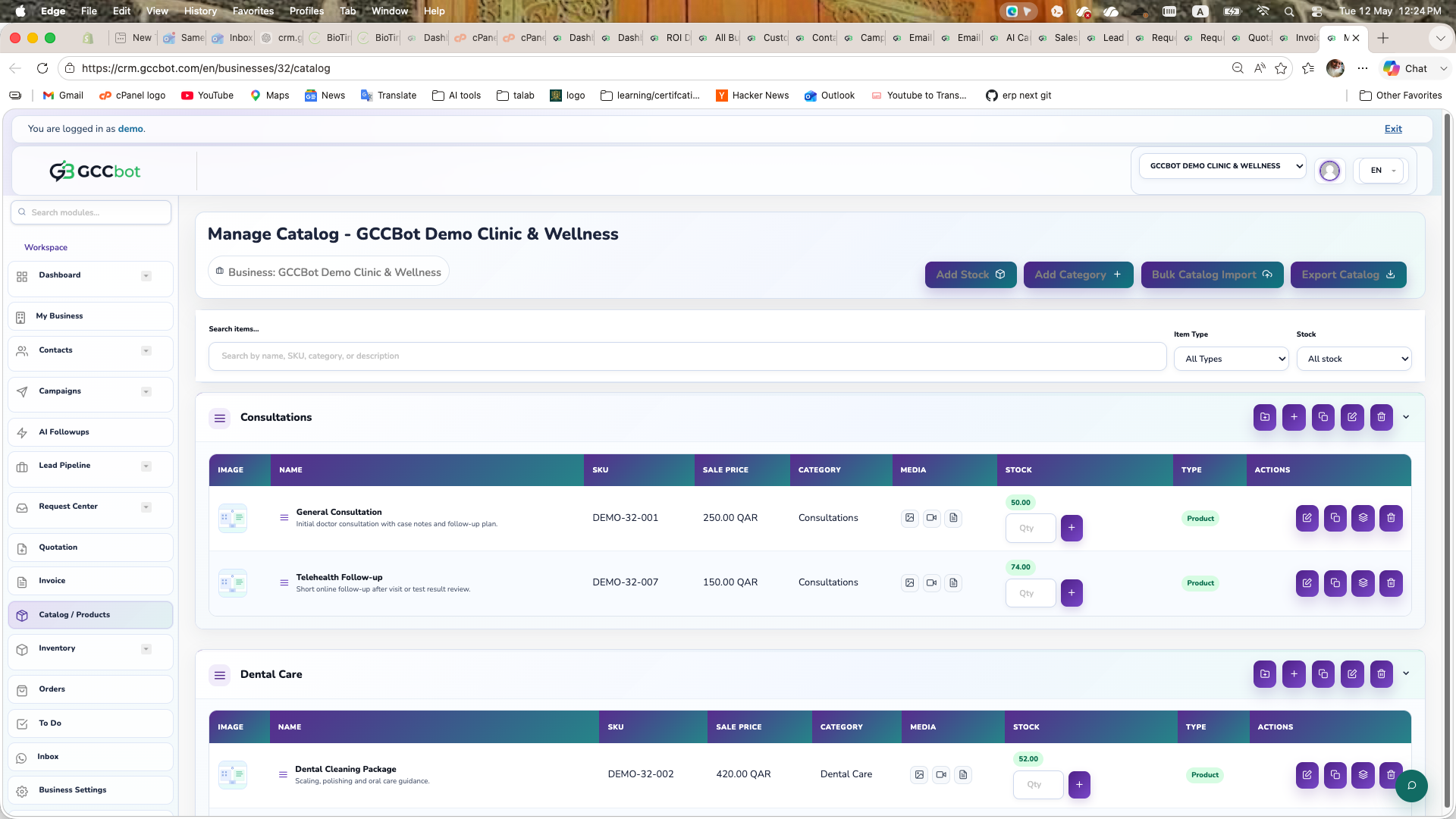
Products / Catalog

Sidebar > Products & Inventory > Products / Catalog
Products / Catalog dashboard screenshot
Screen preview

Improve product/service answers by completing catalog and knowledge fields.

How to use this module
Use this when users say AI gives bad, generic, or missing product/service answers.

Checklist:
1. Add product/service names, prices, categories, images, and descriptions.
2. Add detailed knowledge base text for products/services where available.
3. Keep inactive or outdated items disabled.
4. Sync sales knowledge from Chatbot settings if using OpenAI vector knowledge.
5. Test customer questions with actual product names and common spellings.

The AI should not invent product facts; missing details must be added to catalog or knowledge base.

Inventory Control

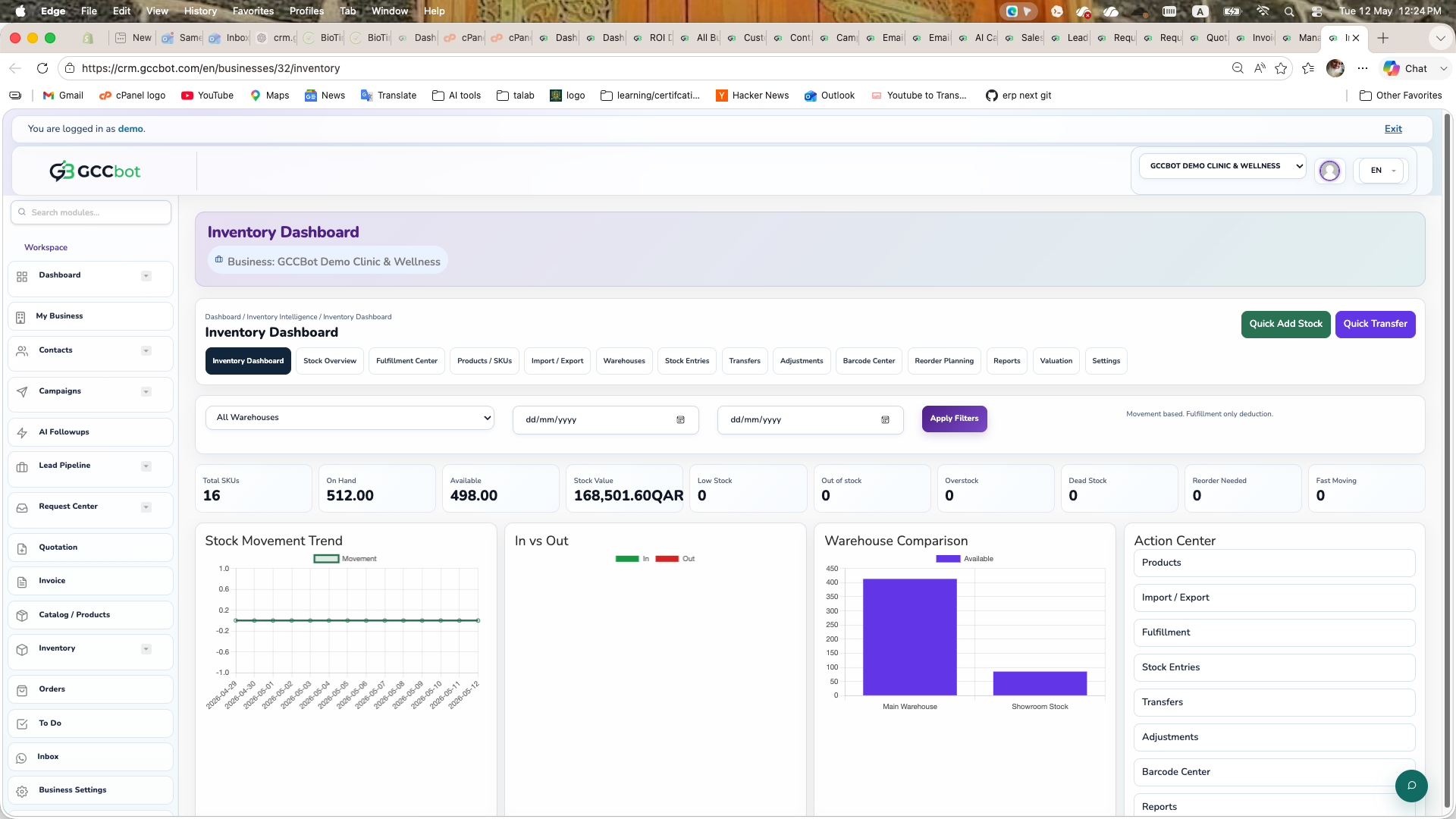
Inventory

Sidebar > Inventory Control > Inventory
Inventory dashboard screenshot
Screen preview

Track stock, warehouses, movements, reservations, transfers, reorder rules, and fulfillment.

How to use this module
Use Inventory when users ask about stock, warehouse quantities, transfers, stock movement, reservations, fulfillment, or reorder alerts.

Steps:
1. Open Inventory.
2. Review dashboard stock levels and alerts.
3. Manage warehouses and stock entries.
4. Use adjustments, transfers, reservations, and fulfillment workflows.

Common issue: product stock accuracy depends on catalog linkage, warehouse setup, and stock movements being recorded.

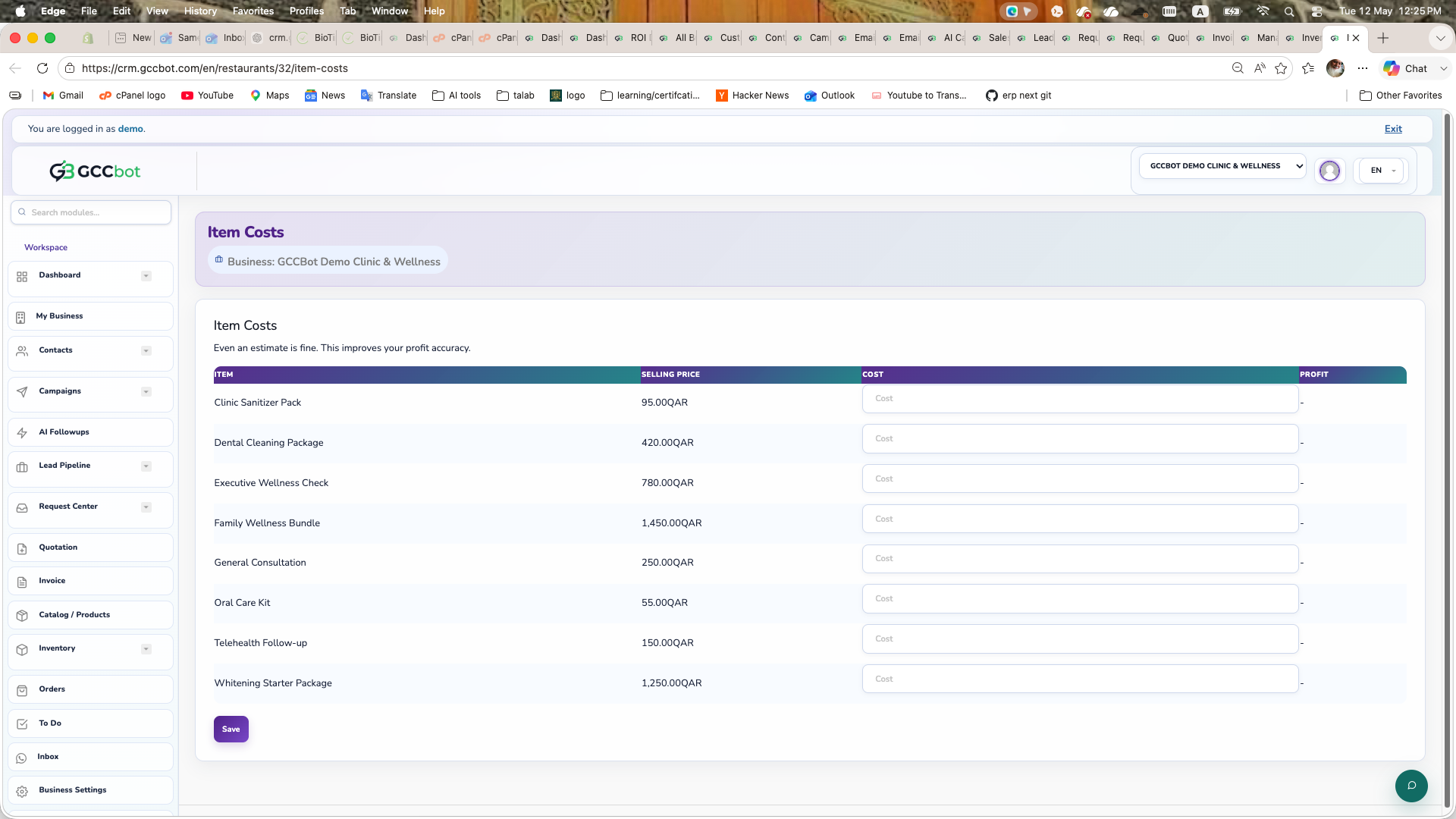
Item Cost / Costing

Sidebar > Inventory Control > Item Cost / Costing
Item Cost / Costing dashboard screenshot
Screen preview

Manage item costs for margin, profit, and product cost visibility.

How to use this module
Use Item Cost / Costing when users ask about product cost, margin, cost of goods, or profit calculations per item.

Steps:
1. Open Item Cost / Costing.
2. Review catalog items and configured costs.
3. Update cost values and save.
4. Use reports/profit screens to review impact.

Common issue: if profit reports look wrong, check item costs and product mapping.

Orders & Bookings

Orders

Sidebar > Orders & Bookings > Orders
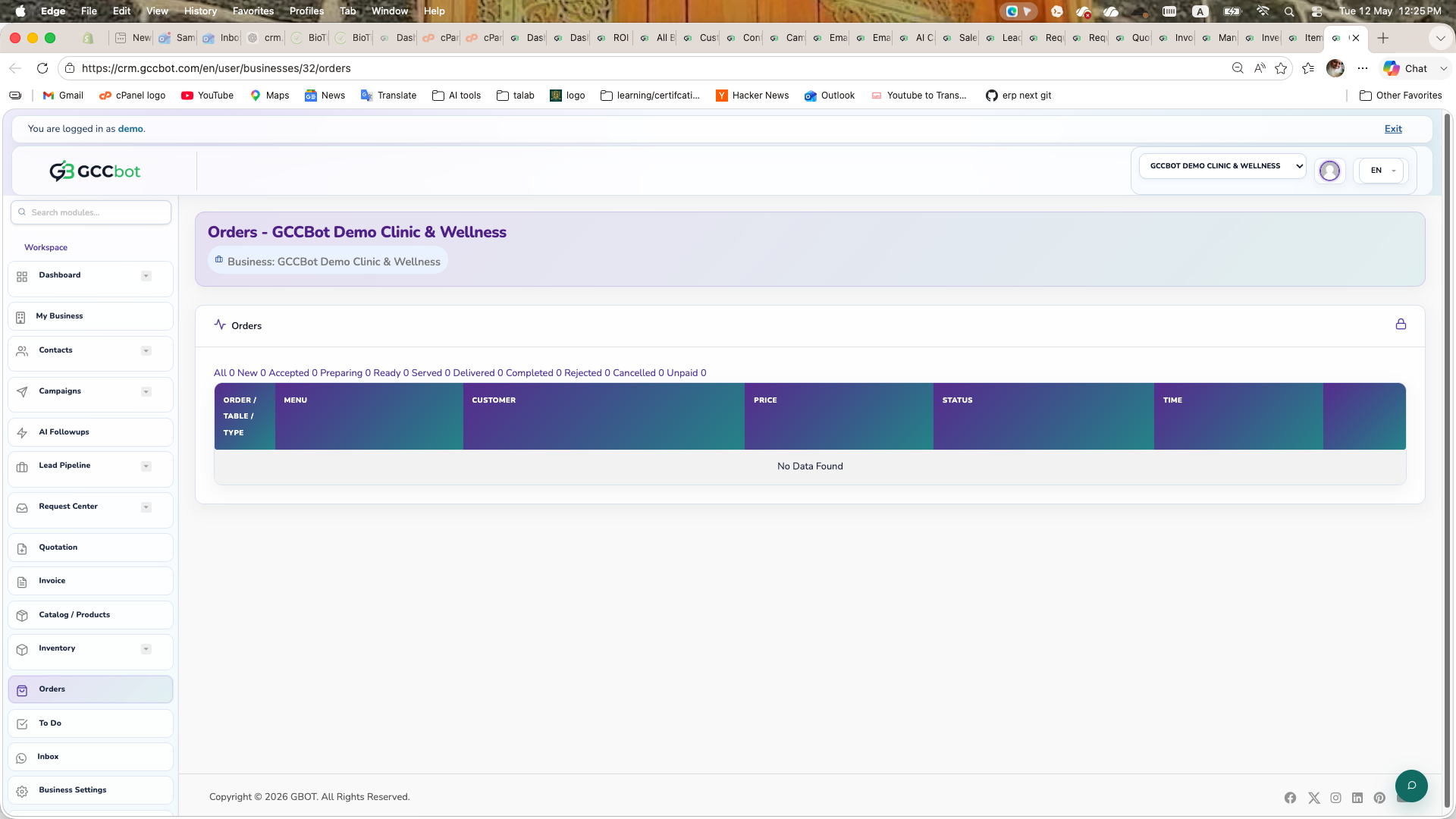
Orders dashboard screenshot
Screen preview

Manage customer orders, order status, POS/order flow, and fulfillment work.

How to use this module
Use Orders when users ask where orders are, how to manage order status, how to view customer orders, or how WhatsApp/POS orders appear.

Steps:
1. Open Orders.
2. Select the correct business.
3. Review new, active, completed, or canceled orders.
4. Update status, print where configured, or continue fulfillment.

Common issue: if orders are missing, check business context and whether the customer flow created a lead/order request or a full order.

Loyalty Program

Loyalty Program

Sidebar > Loyalty Program > Loyalty Program

Use Loyalty Program from the dashboard sidebar.

How to use this module
Where to go:
Sidebar > Loyalty Program > Loyalty Program.

Basic steps:
1. Open Loyalty Program from the sidebar.
2. Select the correct business if the page asks for business context.
3. Review the available list, cards, or settings.
4. Create, edit, manage, or report from the available page actions according to your role permissions.

Operations Tasks

Projects

Sidebar > Operations Tasks > Projects

Use Projects from the dashboard sidebar.

How to use this module
Where to go:
Sidebar > Operations Tasks > Projects.

Basic steps:
1. Open Projects from the sidebar.
2. Select the correct business if the page asks for business context.
3. Review the available list, cards, or settings.
4. Create, edit, manage, or report from the available page actions according to your role permissions.

To Do

Sidebar > Operations Tasks > To Do
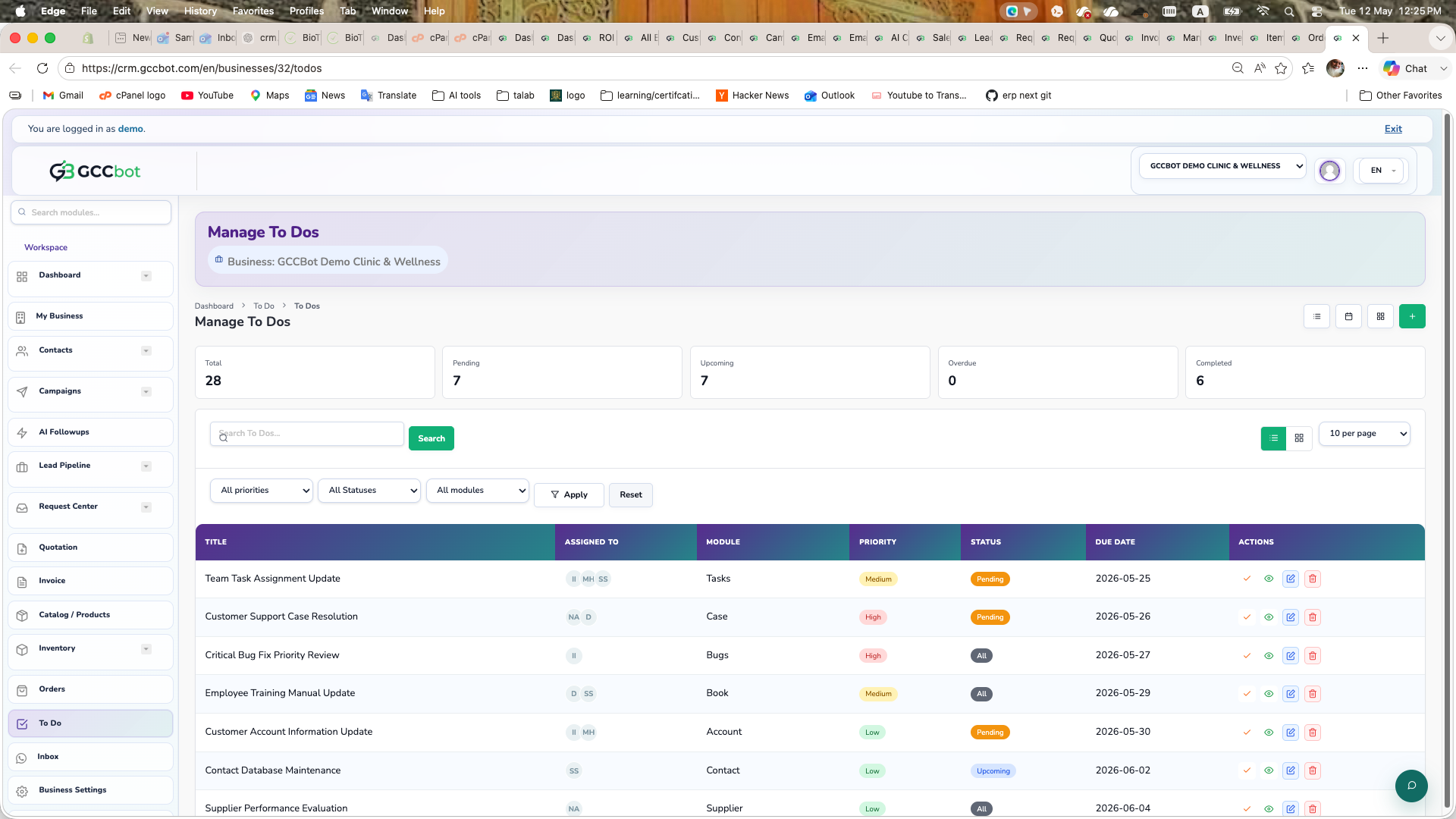
To Do dashboard screenshot
Screen preview

Use To Do from the dashboard sidebar.

How to use this module
Where to go:
Sidebar > Operations Tasks > To Do.

Basic steps:
1. Open To Do from the sidebar.
2. Select the correct business if the page asks for business context.
3. Review the available list, cards, or settings.
4. Create, edit, manage, or report from the available page actions according to your role permissions.

Client Portal

Sidebar > Operations Tasks > Client Portal

Use Client Portal from the dashboard sidebar.

How to use this module
Where to go:
Sidebar > Operations Tasks > Client Portal.

Basic steps:
1. Open Client Portal from the sidebar.
2. Select the correct business if the page asks for business context.
3. Review the available list, cards, or settings.
4. Create, edit, manage, or report from the available page actions according to your role permissions.

WhatsApp Channels

Inbox

Sidebar > WhatsApp Channels > Inbox
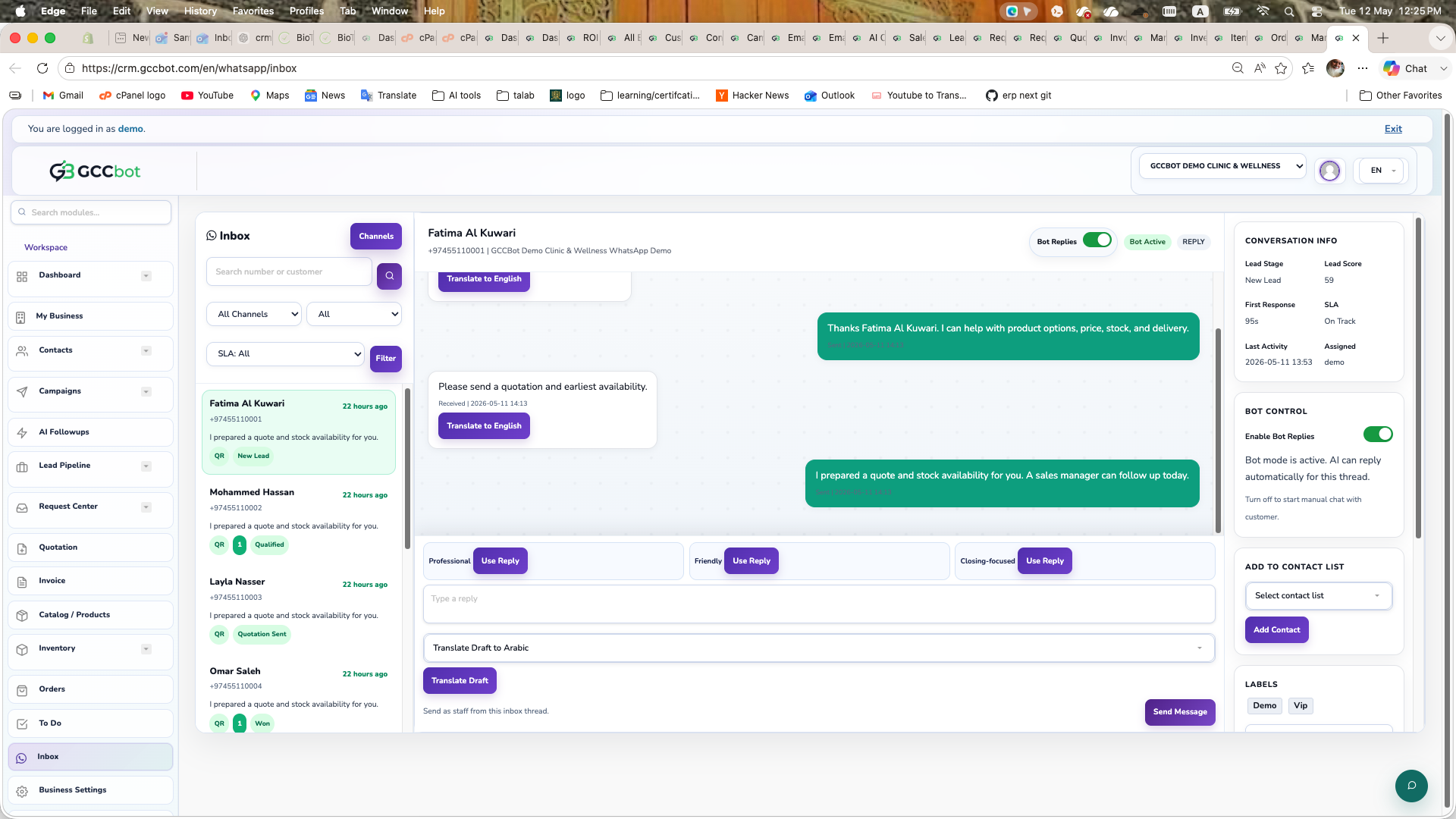
Inbox dashboard screenshot
Screen preview

View WhatsApp conversations, respond manually, translate, label, add notes, and control bot mode per thread.

How to use this module
Use Inbox when users ask where WhatsApp chats are, how to reply manually, where customer messages appear, how to pause bot for a customer, how to enable bot replies again after staff transfer, or how to add labels/notes.

Steps:
1. Open Inbox.
2. Select a WhatsApp thread.
3. Read conversation history and send manual replies.
4. If the top badge says Manual Chat, the bot is disabled only for this inbox thread.
5. Open the Bot Control panel and turn Enable Bot Replies on to resume AI/bot auto-replies for that customer.
6. Use labels, notes, translation, and phone book actions as needed.

Important distinction: Bot Disabled Contacts is for permanent contact/list-level suppression. Staff transfer or human handover uses per-thread manual mode in the Inbox, not the Bot Disabled Contacts list.

Common issue: if no chats appear, check WhatsApp channel connection and webhook delivery.

Chatbot

Sidebar > WhatsApp Channels > Chatbot

Use Chatbot from the dashboard sidebar.

How to use this module
Where to go:
Sidebar > WhatsApp Channels > Chatbot.

Basic steps:
1. Open Chatbot from the sidebar.
2. Select the correct business if the page asks for business context.
3. Review the available list, cards, or settings.
4. Create, edit, manage, or report from the available page actions according to your role permissions.

WhatsApp Channels

Sidebar > WhatsApp Channels > WhatsApp Channels

Connect and manage WhatsApp channels, QR sessions, Meta/manual channels, templates, status, and test sends.

How to use this module
Use WhatsApp Channels when users ask how to connect WhatsApp, scan QR, disconnect a channel, sync templates, test send, or check channel status.

Steps:
1. Open WhatsApp Channels.
2. Choose QR or Meta/manual connection based on setup.
3. Complete connection and verify active status.
4. Run test send if available.
5. Return to Chatbot/Campaigns after the channel is active.

Common issue: chatbot and campaigns cannot send if no active channel exists.

Communication

Call Center

Sidebar > Communication > Call Center

Use Call Center from the dashboard sidebar.

How to use this module
Where to go:
Sidebar > Communication > Call Center.

Basic steps:
1. Open Call Center from the sidebar.
2. Select the correct business if the page asks for business context.
3. Review the available list, cards, or settings.
4. Create, edit, manage, or report from the available page actions according to your role permissions.

Settings Hub

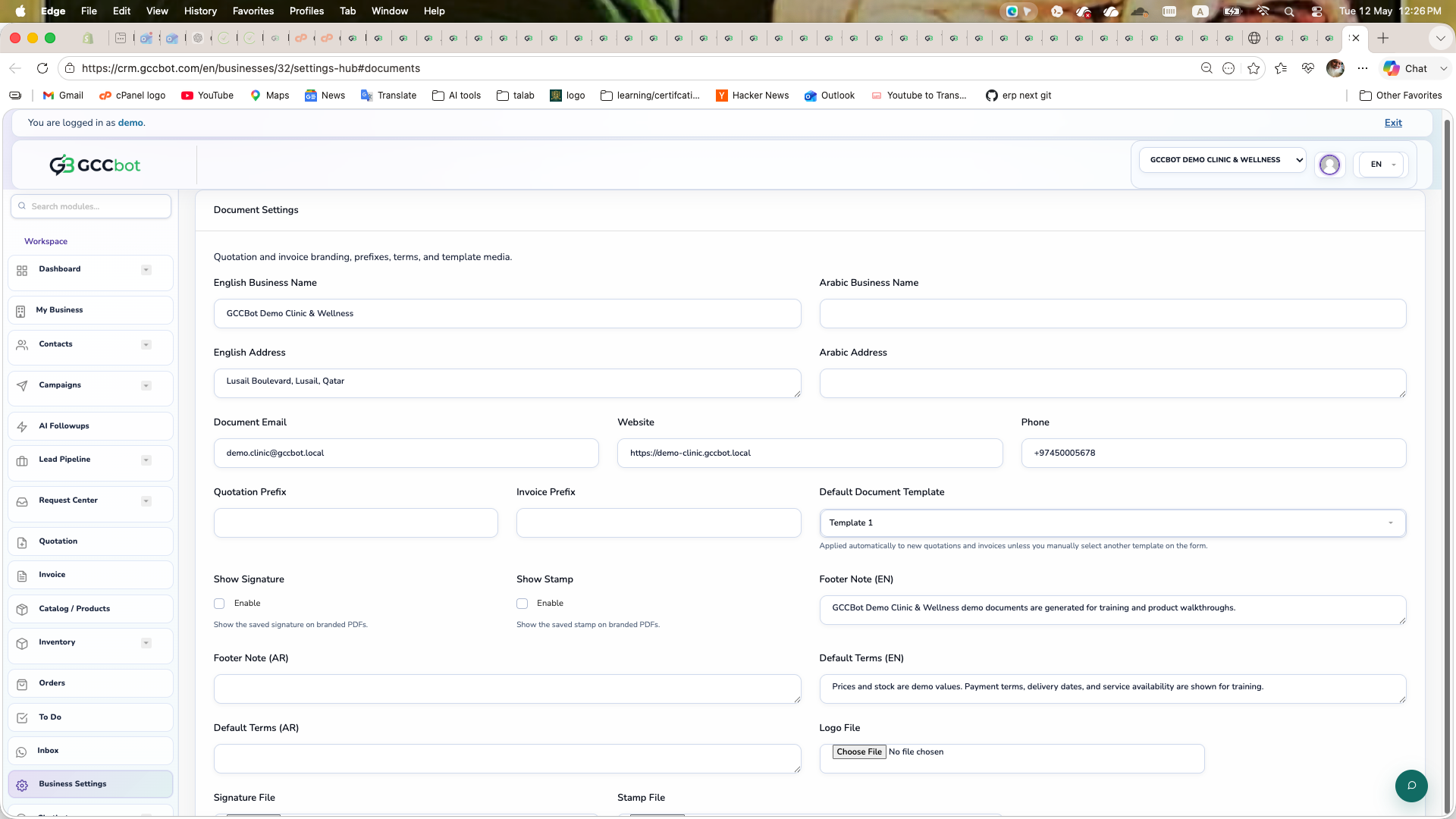
Business Settings

Sidebar > Settings Hub > Business Settings
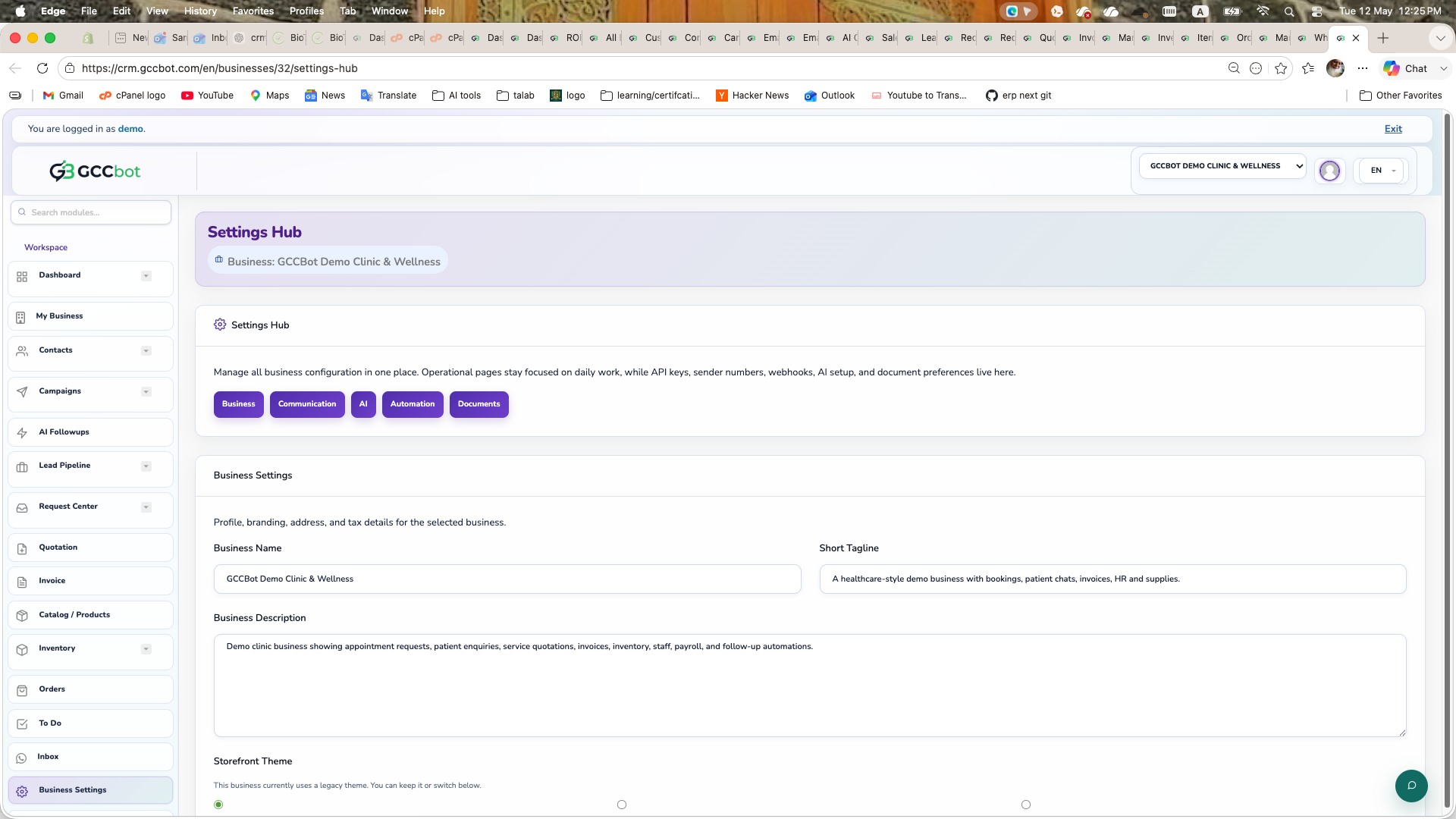
Business Settings dashboard screenshot
Screen preview

Configure business identity, defaults, operational settings, and setup hub items.

How to use this module
Use Business Settings when users ask where to edit business details, logo, address, currency, working hours, defaults, or setup checklist.

Steps:
1. Open Business Settings.
2. Choose the setting category.
3. Update business details, contact info, currency, hours, or defaults.
4. Save and confirm related modules such as invoices, chatbot, and public pages show the new values.

Common issue: chatbot and documents often depend on business profile data being complete.

Theme Studio

Sidebar > Settings Hub > Theme Studio

Use Theme Studio from the dashboard sidebar.

How to use this module
Where to go:
Sidebar > Settings Hub > Theme Studio.

Basic steps:
1. Open Theme Studio from the sidebar.
2. Select the correct business if the page asks for business context.
3. Review the available list, cards, or settings.
4. Create, edit, manage, or report from the available page actions according to your role permissions.

Zoho Sync

Sidebar > Settings Hub > Zoho Sync

Use Zoho Sync from the dashboard sidebar.

How to use this module
Where to go:
Sidebar > Settings Hub > Zoho Sync.

Basic steps:
1. Open Zoho Sync from the sidebar.
2. Select the correct business if the page asks for business context.
3. Review the available list, cards, or settings.
4. Create, edit, manage, or report from the available page actions according to your role permissions.

Finance

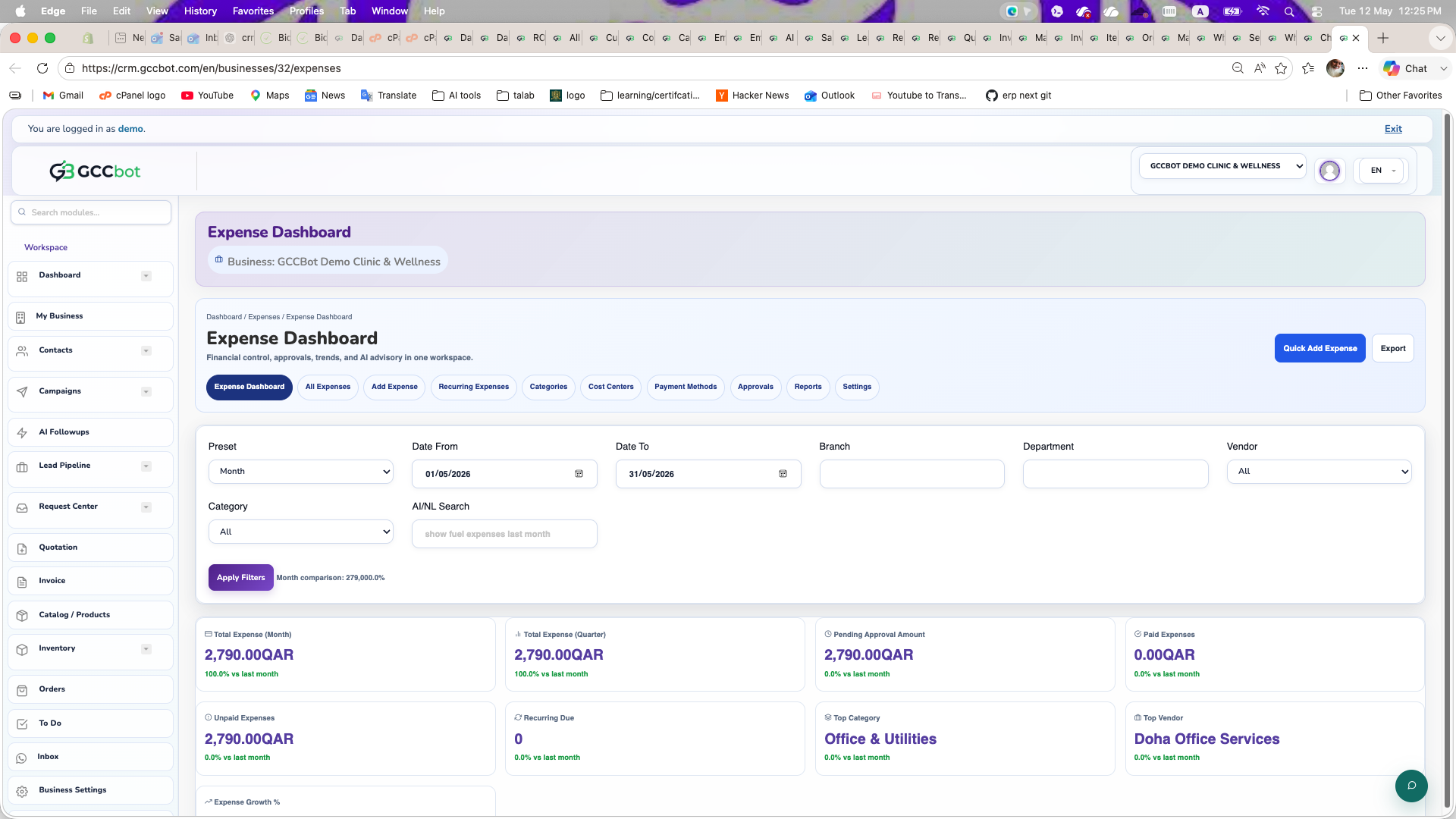
Expenses

Sidebar > Finance > Expenses
Expenses dashboard screenshot
Screen preview

Manage expenses, vendors, categories, payment methods, approvals, recurring bills, and expense reports.

How to use this module
Use Expenses when users ask where to add expenses, manage expense vendors, approve/reject bills, create recurring expenses, or see expense reports.

Steps:
1. Open Expenses.
2. Add expenses or vendor bills.
3. Configure vendors, categories, cost centers, and payment methods as needed.
4. Submit for approval if approval flow is used.
5. Review reports for totals and trends.

Common issue: reporting quality depends on correct categories, vendors, and payment method selection.

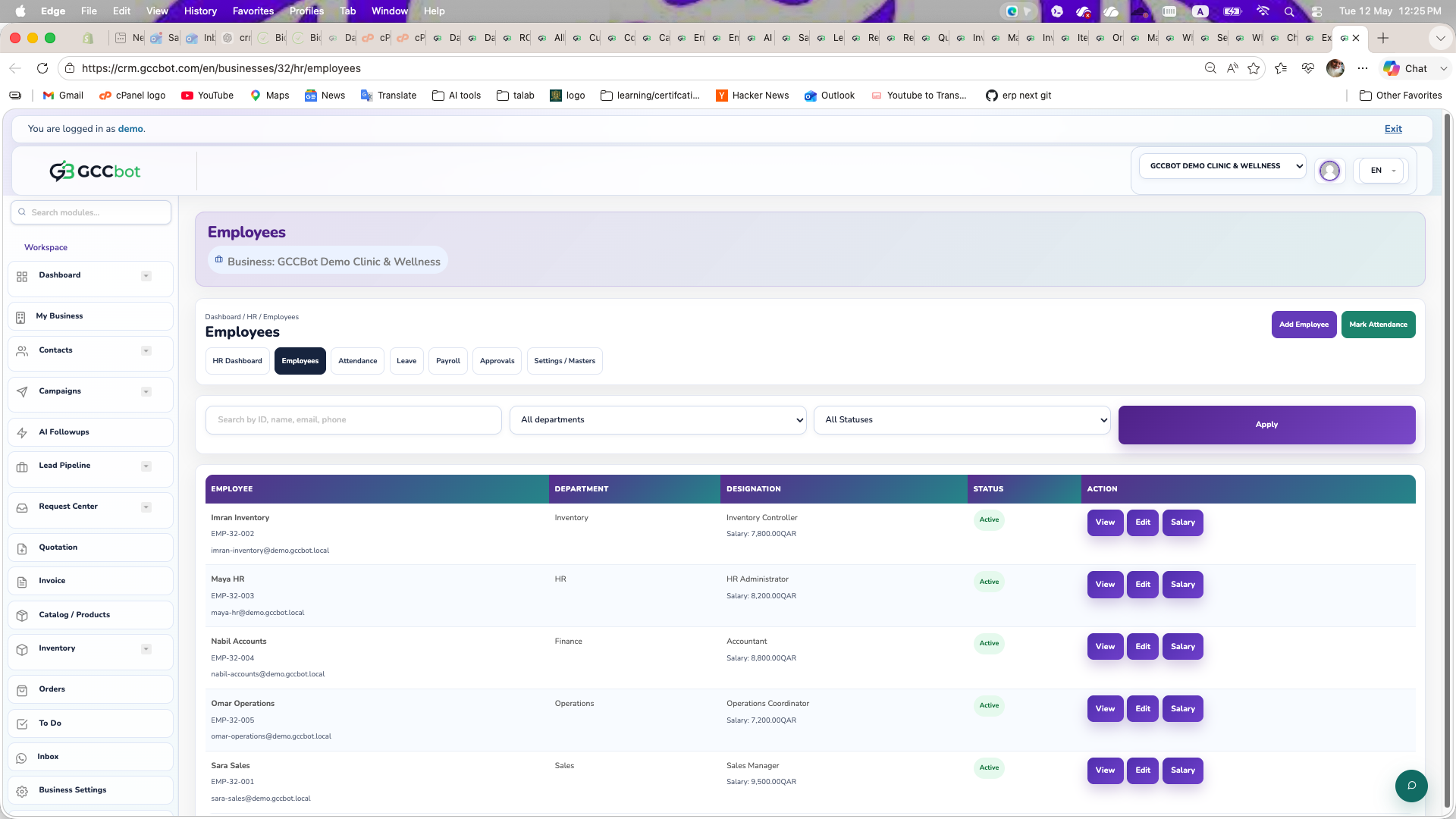
HR & Team

Employees

Sidebar > HR & Team > Employees
Employees dashboard screenshot
Screen preview

Manage employees, attendance, leave, payroll, and HR approvals.

How to use this module
Use HR when users ask about employees, attendance, leave, payroll, salary, approvals, or HR masters.

Main pages:
- Employees: employee records and setup.
- Attendance: attendance records and shifts.
- Leave: leave requests and balances.
- Payroll: payroll creation and status.
- Approvals: pending HR approvals.

Common issue: payroll and attendance depend on employee setup being complete.

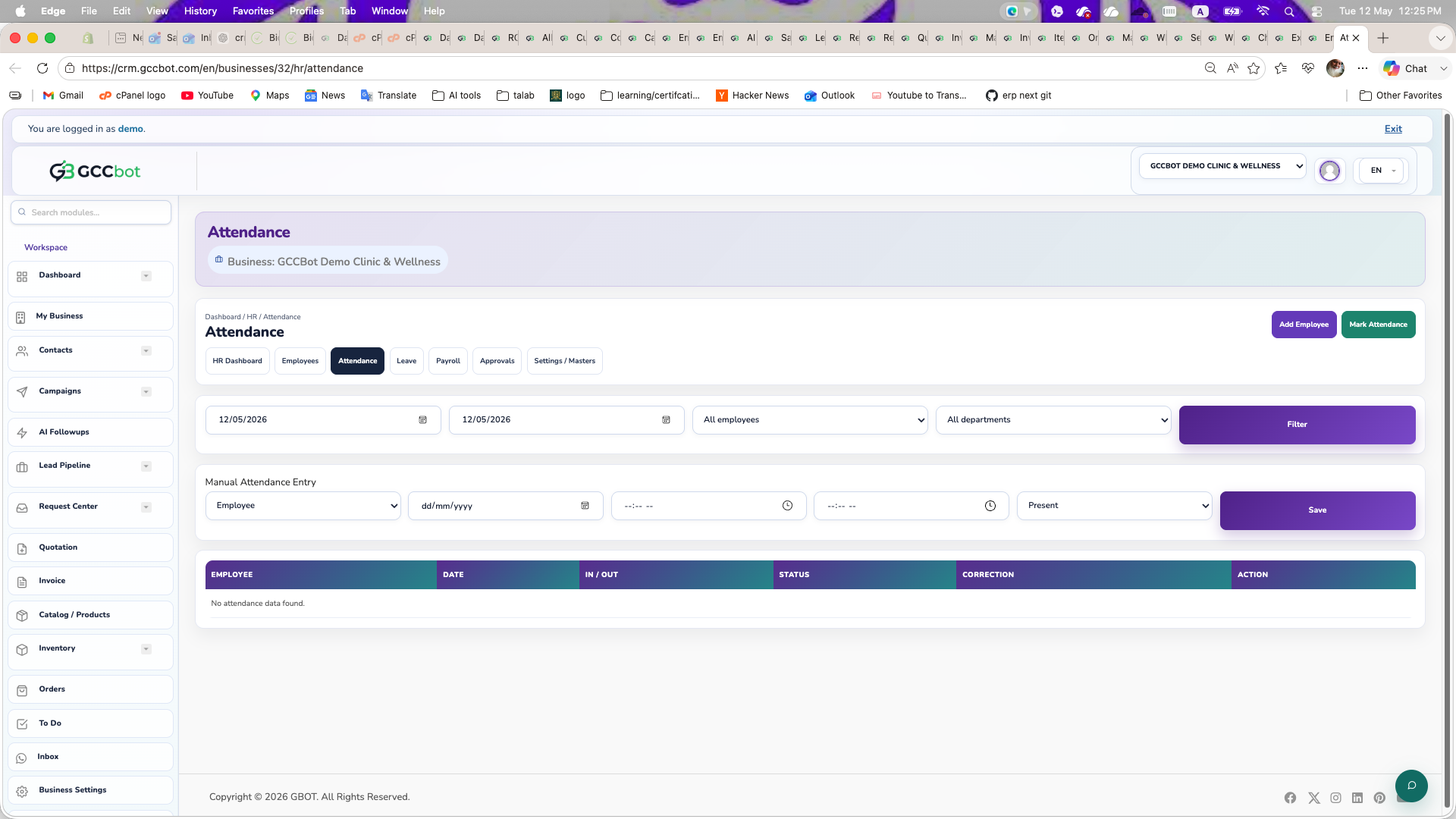
Attendance

Sidebar > HR & Team > Attendance
Attendance dashboard screenshot
Screen preview

Use Attendance from the dashboard sidebar.

How to use this module
Where to go:
Sidebar > HR & Team > Attendance.

Basic steps:
1. Open Attendance from the sidebar.
2. Select the correct business if the page asks for business context.
3. Review the available list, cards, or settings.
4. Create, edit, manage, or report from the available page actions according to your role permissions.

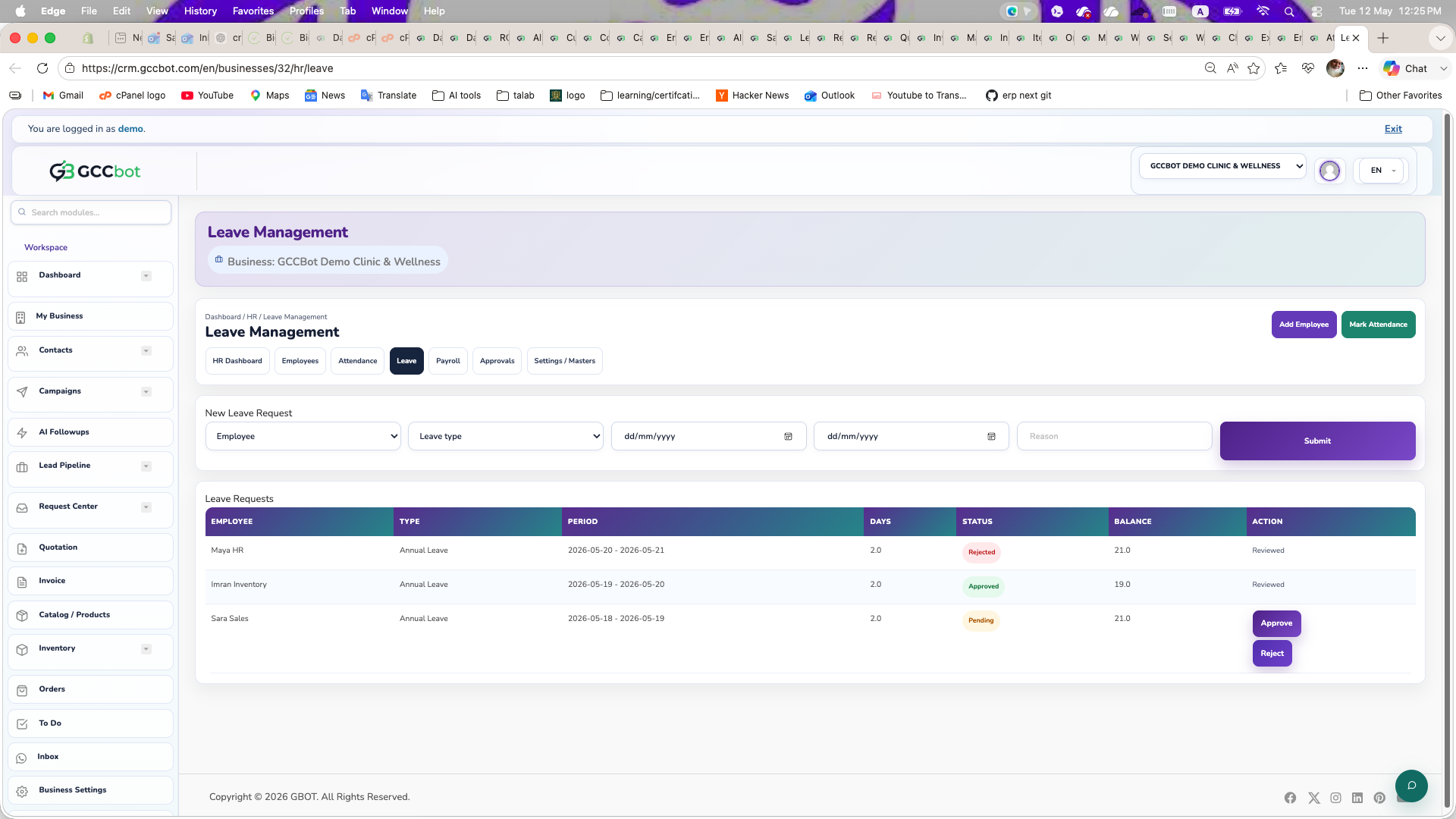
Leave

Sidebar > HR & Team > Leave
Leave dashboard screenshot
Screen preview

Use Leave from the dashboard sidebar.

How to use this module
Where to go:
Sidebar > HR & Team > Leave.

Basic steps:
1. Open Leave from the sidebar.
2. Select the correct business if the page asks for business context.
3. Review the available list, cards, or settings.
4. Create, edit, manage, or report from the available page actions according to your role permissions.

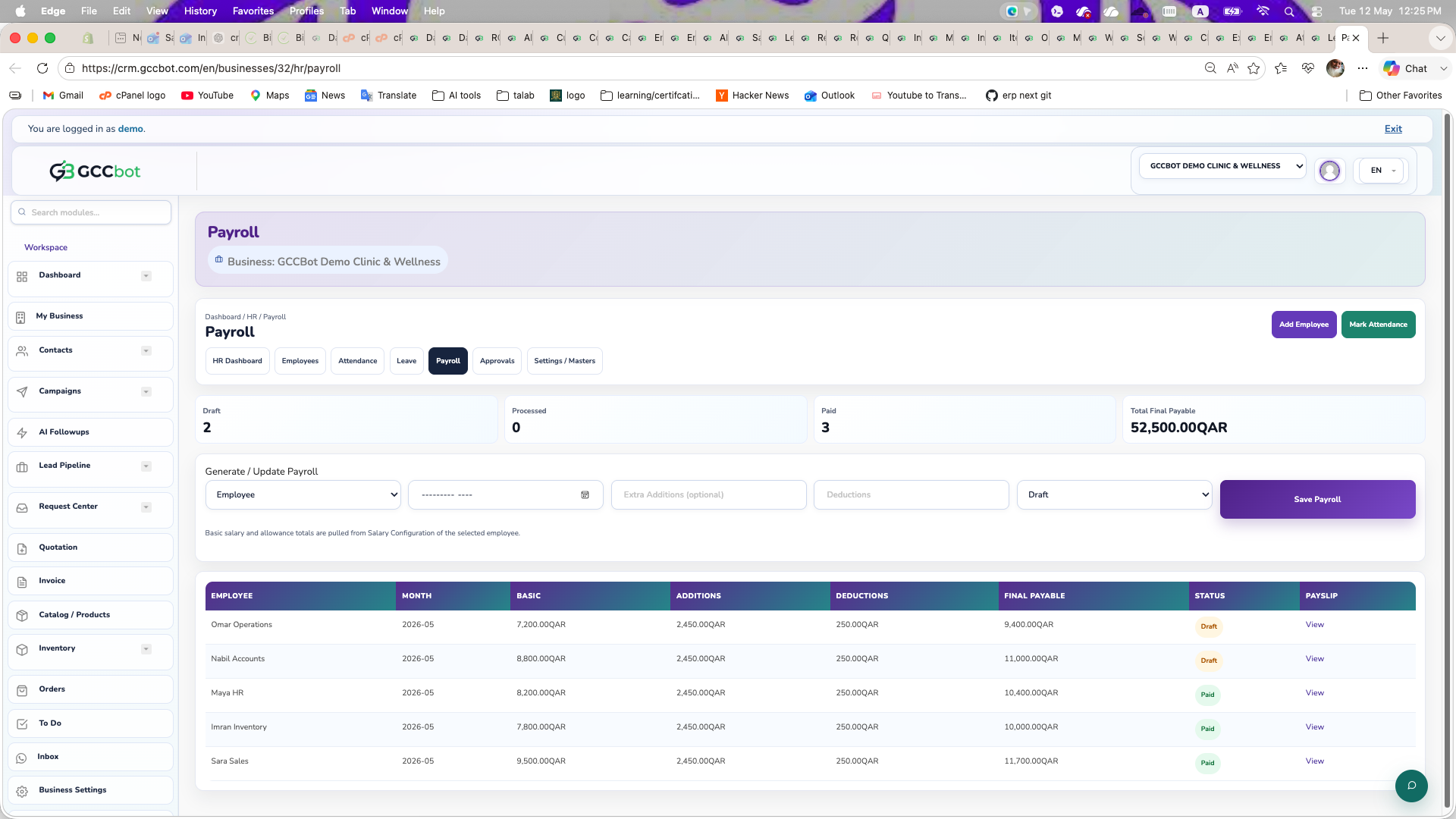
Payroll

Sidebar > HR & Team > Payroll
Payroll dashboard screenshot
Screen preview

Use Payroll from the dashboard sidebar.

How to use this module
Where to go:
Sidebar > HR & Team > Payroll.

Basic steps:
1. Open Payroll from the sidebar.
2. Select the correct business if the page asks for business context.
3. Review the available list, cards, or settings.
4. Create, edit, manage, or report from the available page actions according to your role permissions.

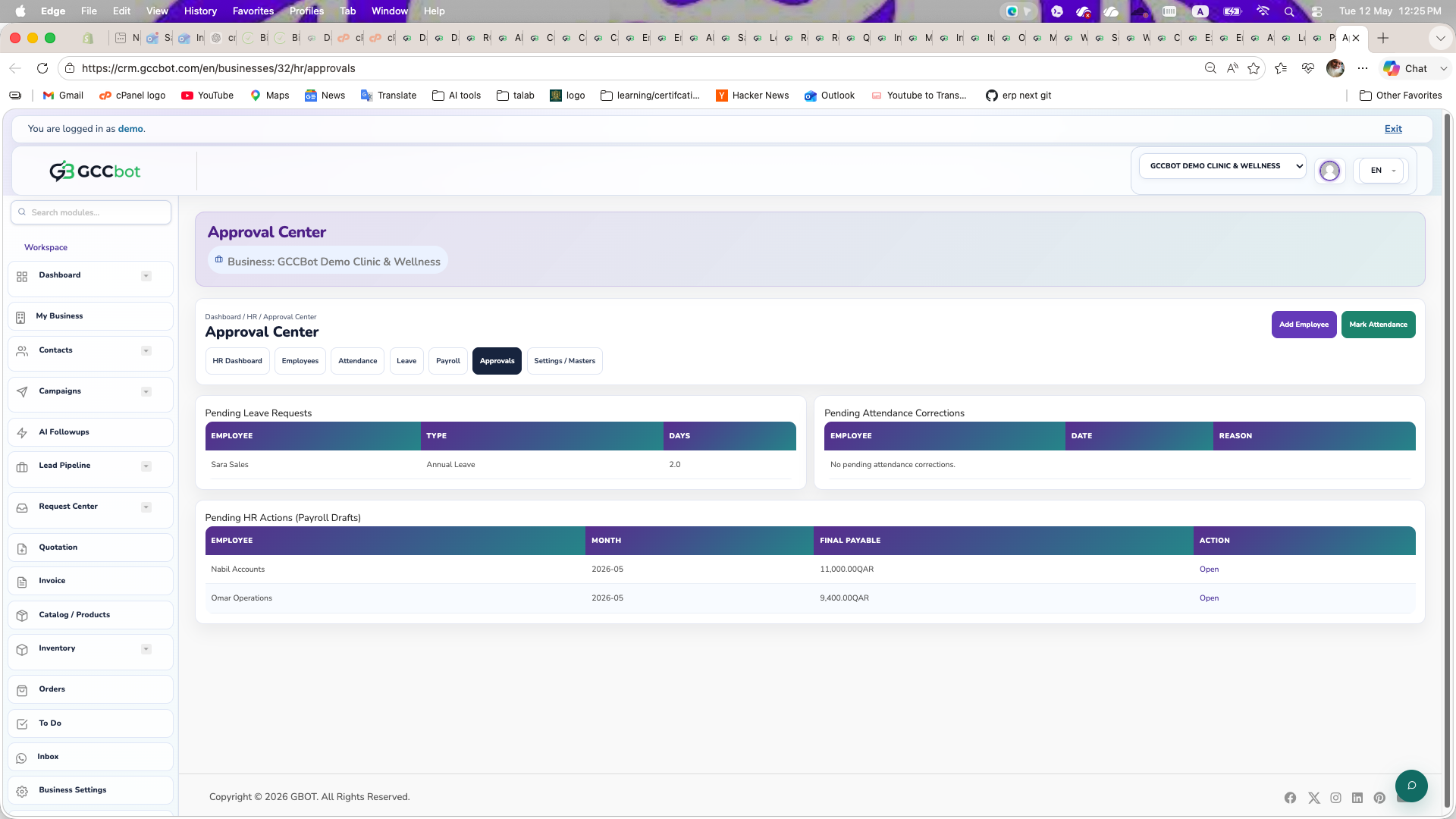
Approvals

Sidebar > HR & Team > Approvals
Approvals dashboard screenshot
Screen preview

Use Approvals from the dashboard sidebar.

How to use this module
Where to go:
Sidebar > HR & Team > Approvals.

Basic steps:
1. Open Approvals from the sidebar.
2. Select the correct business if the page asks for business context.
3. Review the available list, cards, or settings.
4. Create, edit, manage, or report from the available page actions according to your role permissions.

Partners

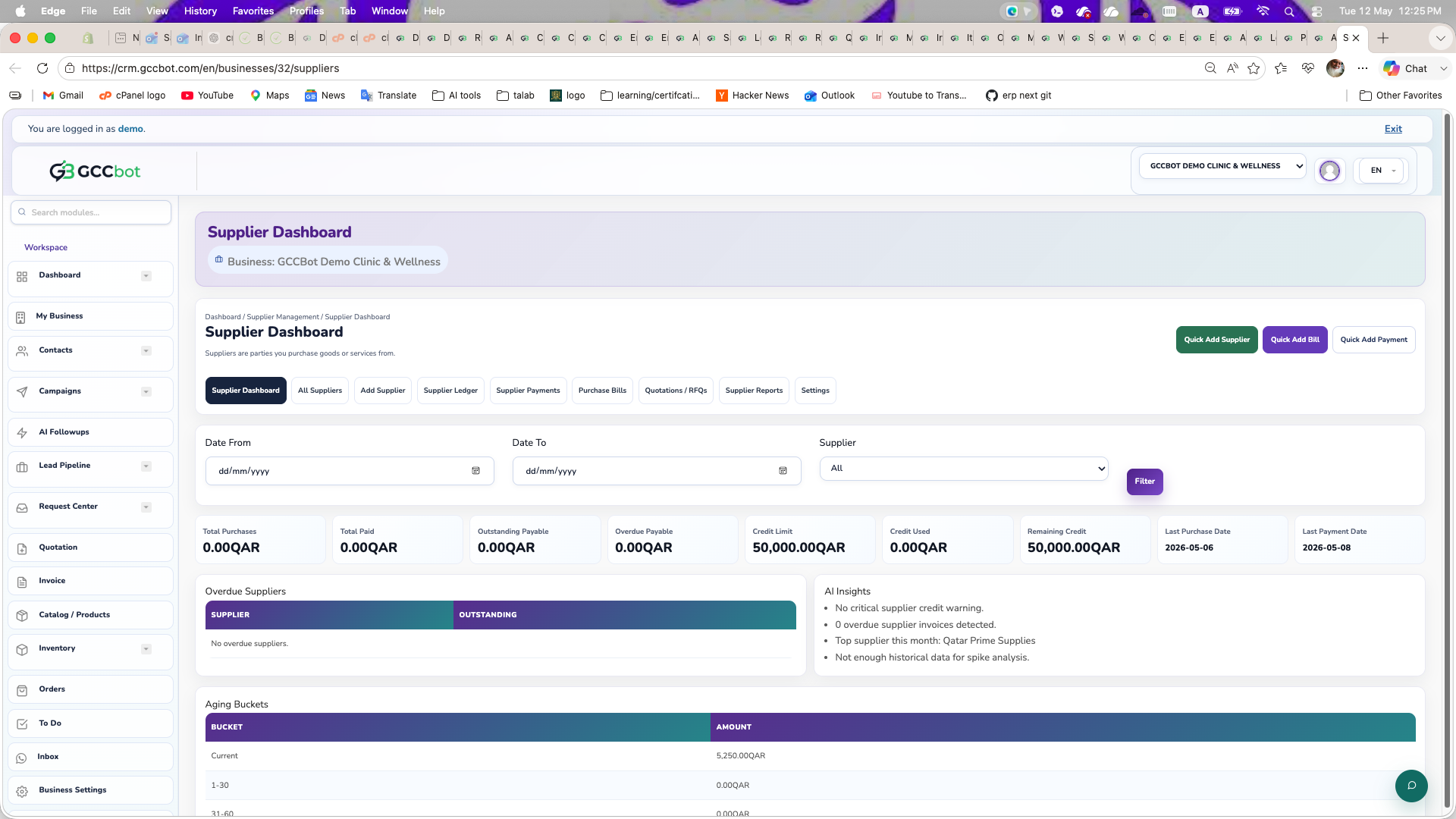
Suppliers

Sidebar > Partners > Suppliers
Suppliers dashboard screenshot
Screen preview

Manage suppliers, supplier bills, payments, quotations, ledger, reports, and supplier settings.

How to use this module
Use Suppliers when users ask about purchasing suppliers, supplier ledger, supplier bills, supplier payments, supplier quotations, or supplier reports.

Steps:
1. Open Suppliers.
2. Create supplier profiles.
3. Add bills, payments, quotations, or ledger adjustments.
4. Review supplier dashboard and reports.

Common issue: supplier balances depend on bills, payments, returns, and ledger adjustments being entered correctly.

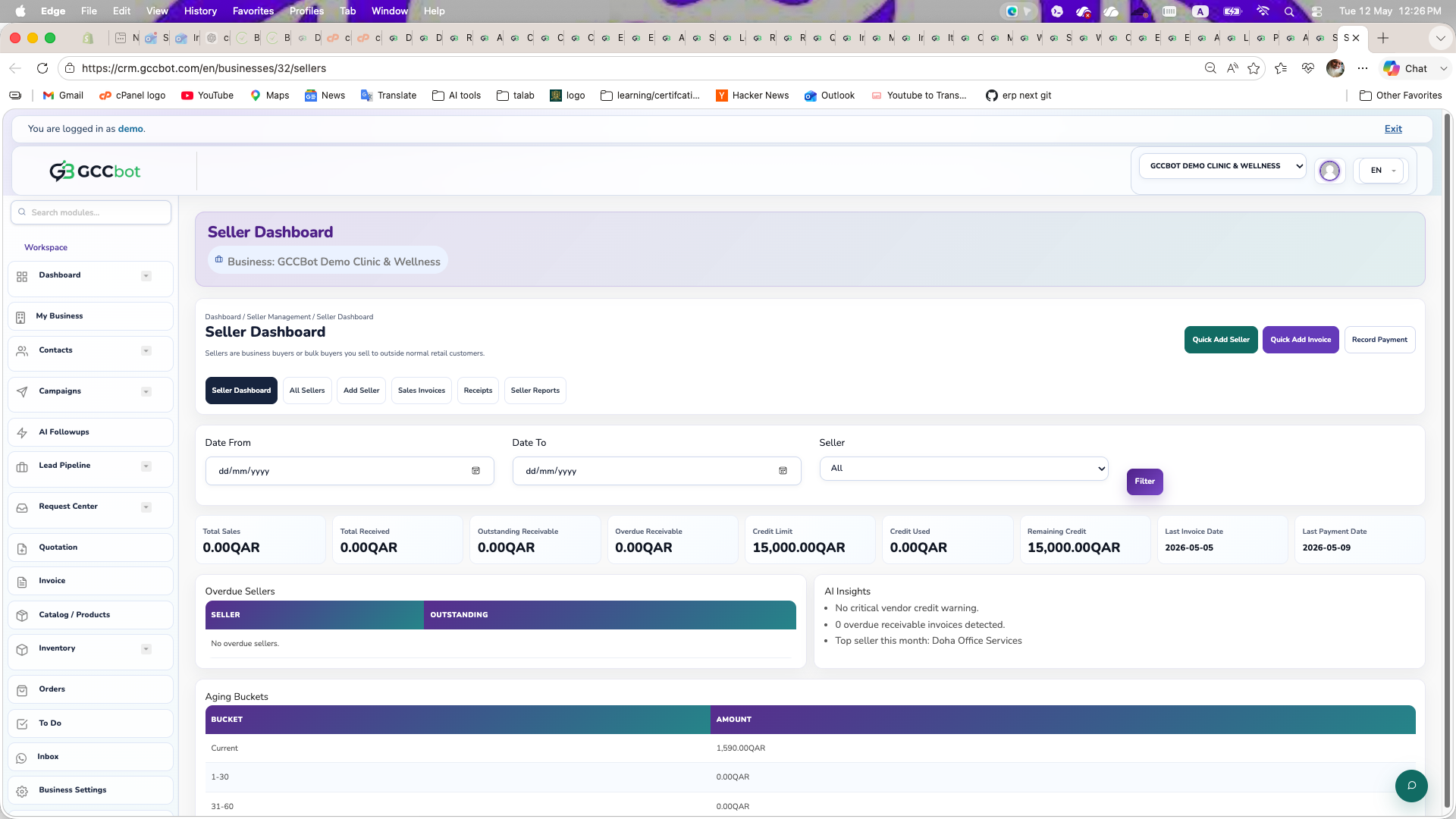
Sellers

Sidebar > Partners > Sellers
Sellers dashboard screenshot
Screen preview

Manage seller/vendor operations, vendor bills, payments, ledger, returns, and related reports.

How to use this module
Use Sellers / Vendors when users ask about sellers, vendors, seller dashboard, vendor bills, vendor payments, vendor ledger, or returns.

Steps:
1. Open Sellers.
2. Create seller/vendor profiles.
3. Manage bills, payments, ledger, and reports.
4. Review balances and outstanding records.

Common issue: if a seller/vendor balance looks wrong, verify bills, payments, returns, and ledger adjustments.

Others

User Manual

Sidebar > Others > User Manual
User Manual dashboard screenshot
Screen preview

Use User Manual from the dashboard sidebar.

How to use this module
Where to go:
Sidebar > Others > User Manual.

Basic steps:
1. Open User Manual from the sidebar.
2. Select the correct business if the page asks for business context.
3. Review the available list, cards, or settings.
4. Create, edit, manage, or report from the available page actions according to your role permissions.

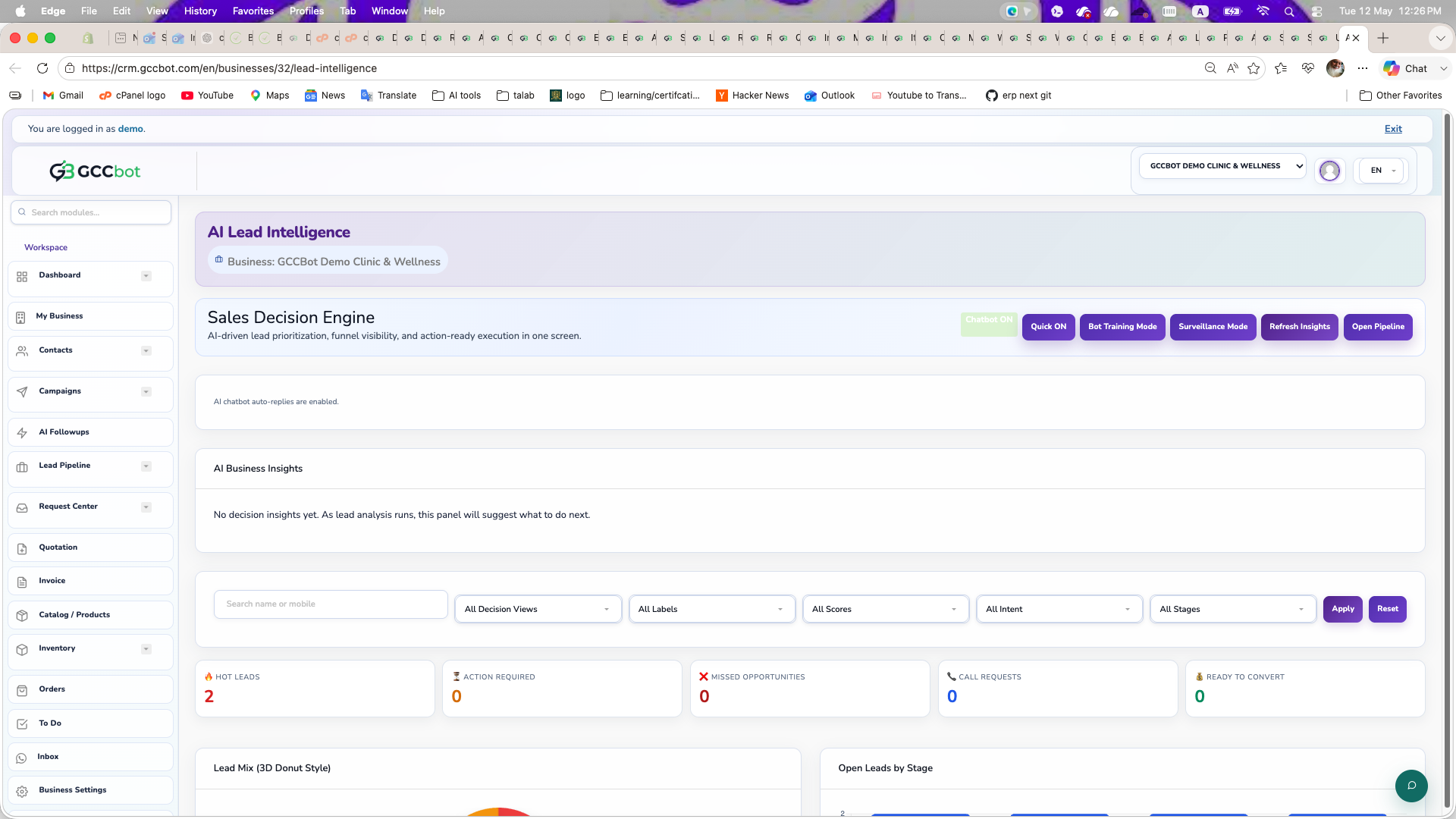
AI Lead Intelligence

Sidebar > Others > AI Lead Intelligence
AI Lead Intelligence dashboard screenshot
Screen preview

Review AI-generated lead summaries, scores, and decision support.

How to use this module
Use AI Lead Intelligence when users ask about lead score, AI summary, lead quality, recommended follow-up, or why a lead is hot/cold.

Steps:
1. Open AI Lead Intelligence.
2. Select a business and review lead summaries.
3. Mark leads as followed when action is complete.

Common issue: if there are no summaries, ensure the business has lead activity and AI processing is enabled.

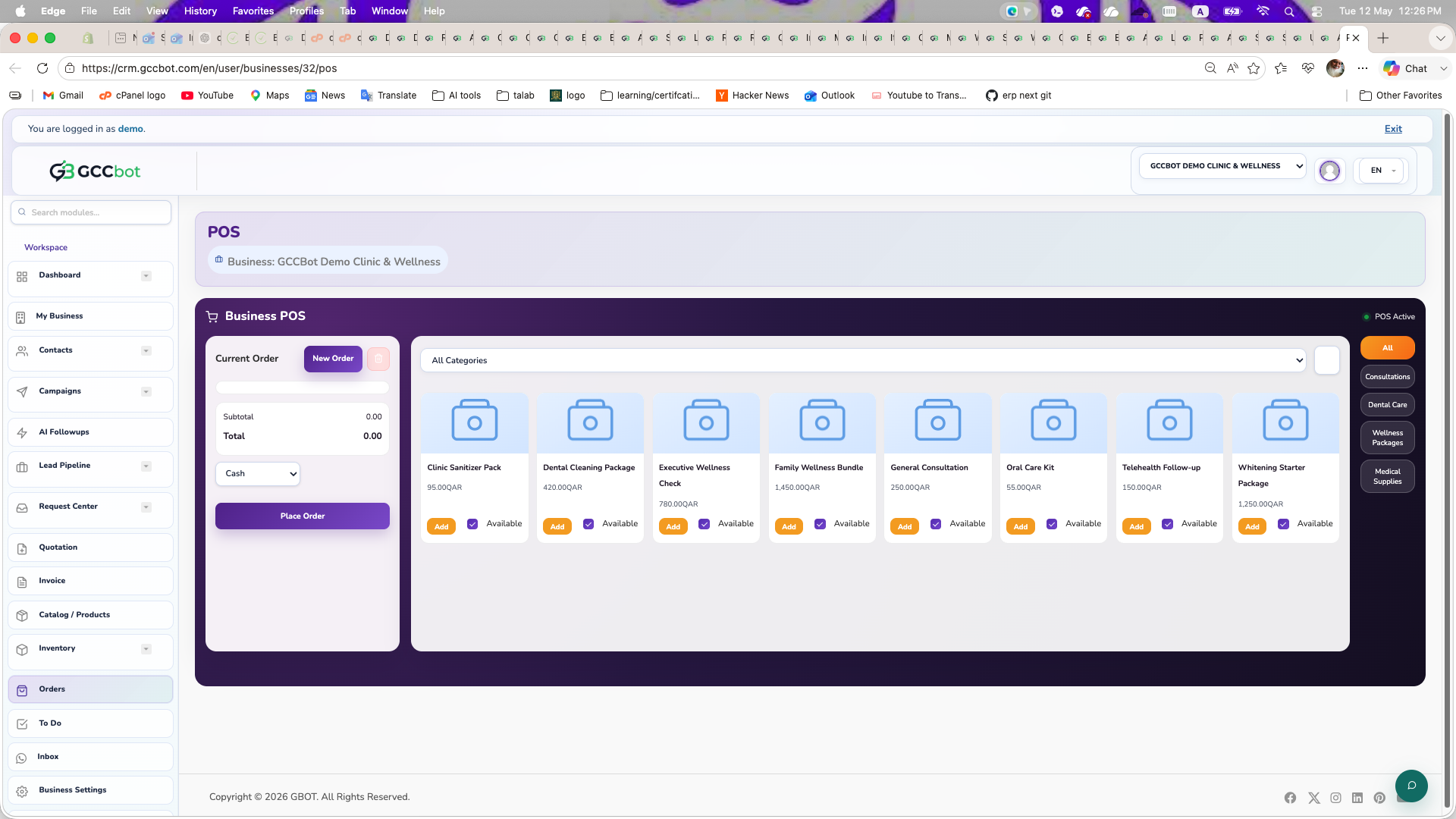
POS

Sidebar > Others > POS
POS dashboard screenshot
Screen preview

Use point-of-sale workflows, order taking, payment, cashier reports, and POS settings.

How to use this module
Use POS when users ask about point of sale, cashier screen, restaurant orders, tables, payment, printing receipts, or POS settings.

Steps:
1. Open POS.
2. Select business/table/order context where applicable.
3. Add items, accept payment, and print receipt if configured.
4. Use reports and shift tools for cashier closeout.

Related setup: Branding / Print / POS Settings controls print and POS configuration.

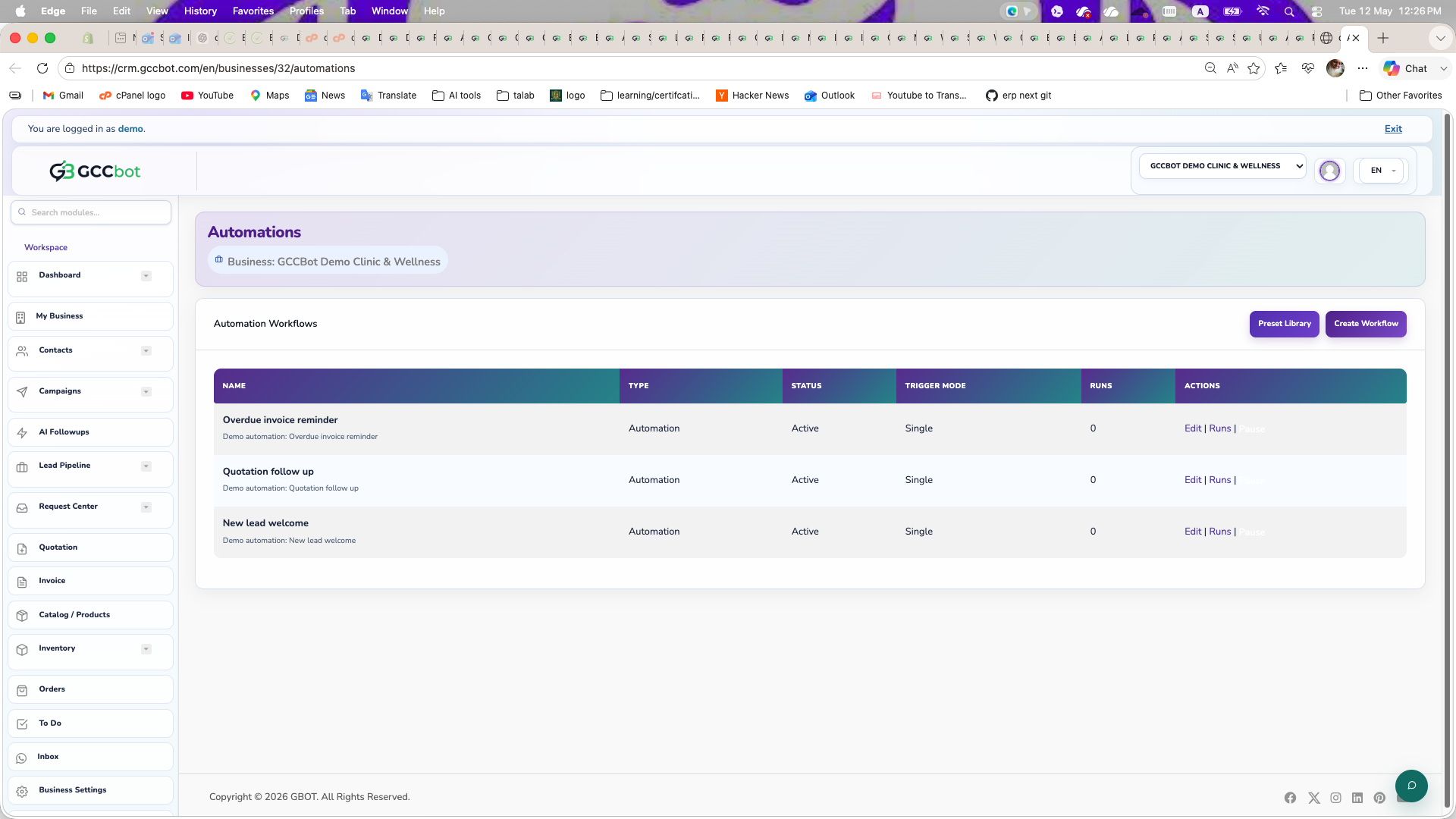
Automations

Sidebar > Others > Automations
Automations dashboard screenshot
Screen preview

Create workflow automations with triggers, conditions, actions, runs, and logs.

How to use this module
Use Automations when users ask how to automate followups, send WhatsApp messages automatically, trigger actions, disable bot temporarily, or review automation runs.

Steps:
1. Open Automations.
2. Create a workflow with trigger, conditions, and actions.
3. Test using sample data where possible.
4. Review Runs to confirm execution.

Common issue: if automation does not fire, check trigger conditions, active status, and run logs.

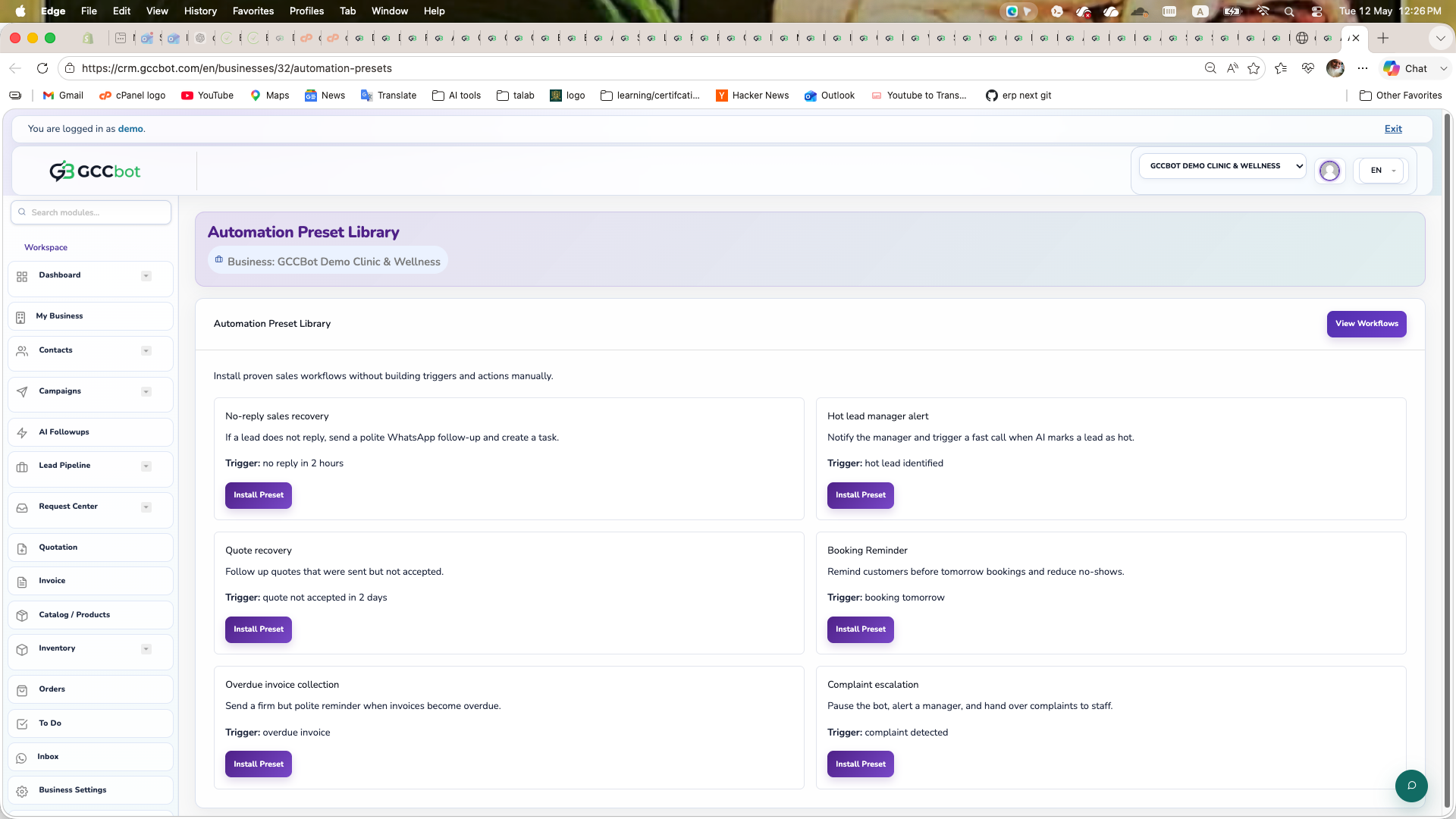
Automation Presets

Sidebar > Others > Automation Presets
Automation Presets dashboard screenshot
Screen preview

Use Automation Presets from the dashboard sidebar.

How to use this module
Where to go:
Sidebar > Others > Automation Presets.

Basic steps:
1. Open Automation Presets from the sidebar.
2. Select the correct business if the page asks for business context.
3. Review the available list, cards, or settings.
4. Create, edit, manage, or report from the available page actions according to your role permissions.

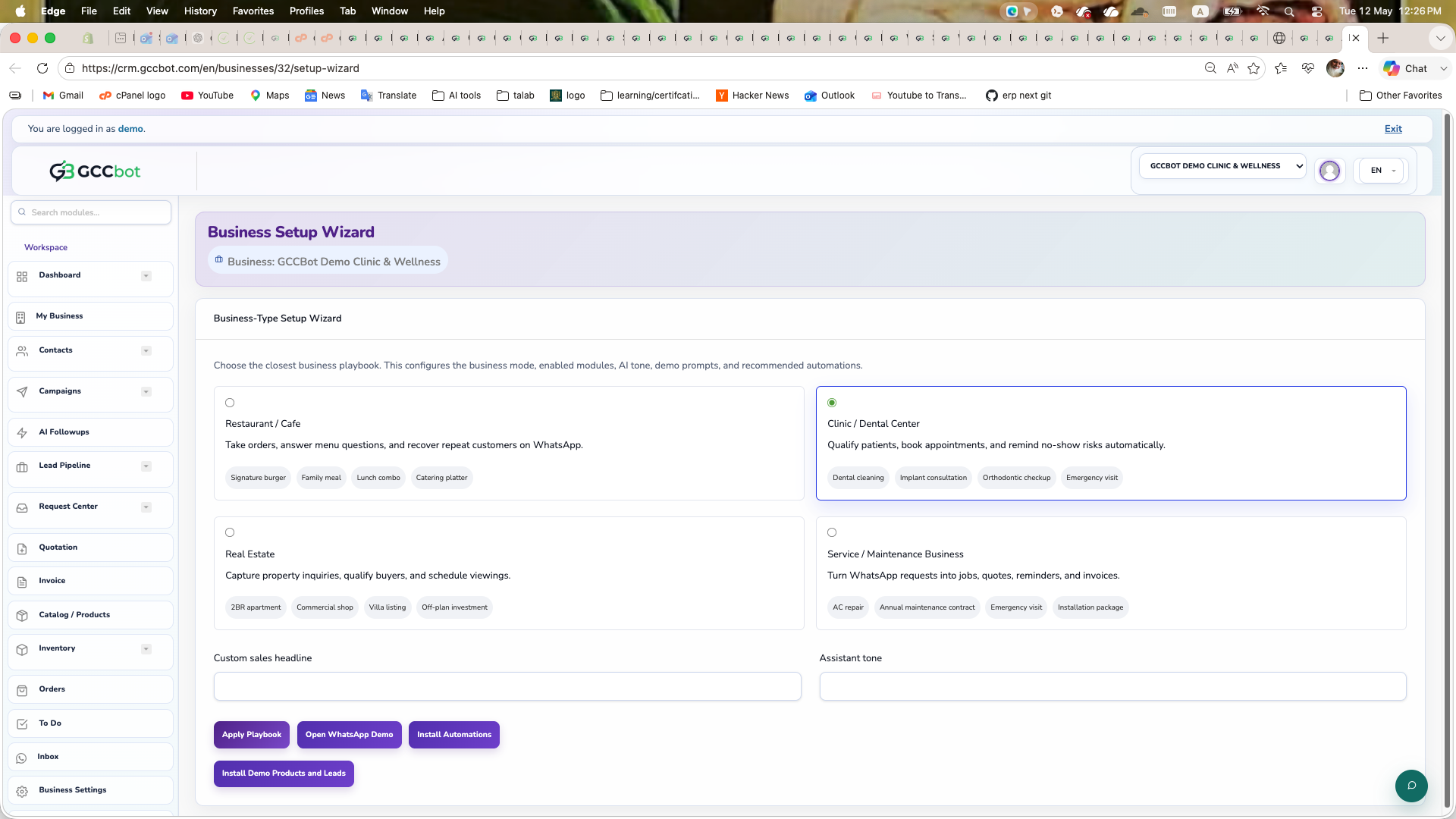
Setup Wizard

Sidebar > Others > Setup Wizard
Setup Wizard dashboard screenshot
Screen preview

Step-by-step setup order for new users before using campaigns, chatbot, leads, invoices, inventory, HR, and operations.

How to use this module
Use this when users ask how to start, what to configure first, or how to prepare the dashboard for a new business.

Recommended setup order:
1. Open My Businesses and create or select the correct business.
2. Open Business Settings and complete business name, logo, address, phone, email, currency, working hours, and defaults.
3. Open Products / Catalog and add products or services with price, description, image, and AI knowledge where available.
4. Open Contacts and add/import contacts. Use phone books/contact lists for campaign audiences.
5. Open WhatsApp Channels or the channel setup page and connect an active WhatsApp number.
6. Open Chatbot and configure Basic Chatbot, Hybrid AI, or AI Chatbot. Add tone, business context, handover, and sales knowledge sync.
7. Open Campaigns and create WhatsApp broadcast templates/messages.
8. Open AI Followups for smart lead or customer follow-up campaigns.
9. Open Lead Pipeline and create/import leads, assign owners, and add reminders.
10. Open Request Center > Bot Request Forms to create data collection, complaint, service request, and appointment forms.
11. Open Quotations and Invoices after document branding and catalog are ready.
12. Open Inventory and configure warehouses, stock entries, adjustments, transfers, and reorder rules if stock tracking is used.
13. Open Suppliers & Vendors to add supplier/vendor profiles, bills, payments, and reports.
14. Open HR to add employees, attendance, leave, payroll, and approvals.
15. Open Team Users and Roles & Permissions to add staff and grant module access.
16. Open To Do to create internal tasks and follow-up work.
17. Open Automations and Automation Presets after the data and channels are ready.

Common issue: if a page is missing, check the selected business, role permissions, and Membership plan.

Branding / Print / POS Settings

Sidebar > Others > Branding / Print / POS Settings
Branding / Print / POS Settings dashboard screenshot
Screen preview

Configure document branding, invoice/quotation appearance, print settings, printers, stations, and POS settings.

How to use this module
Use Branding / Print / POS Settings when users ask about invoice template, quotation template, document logo, receipt printing, kitchen printing, printer setup, or POS configuration.

Steps:
1. Open Branding / Print / POS Settings.
2. Configure document branding and templates.
3. Configure printers, print stations, or POS settings if needed.
4. Test print output from POS/orders/documents.

Common issue: print failures often require printer/station setup and browser/QZ print mode checks.

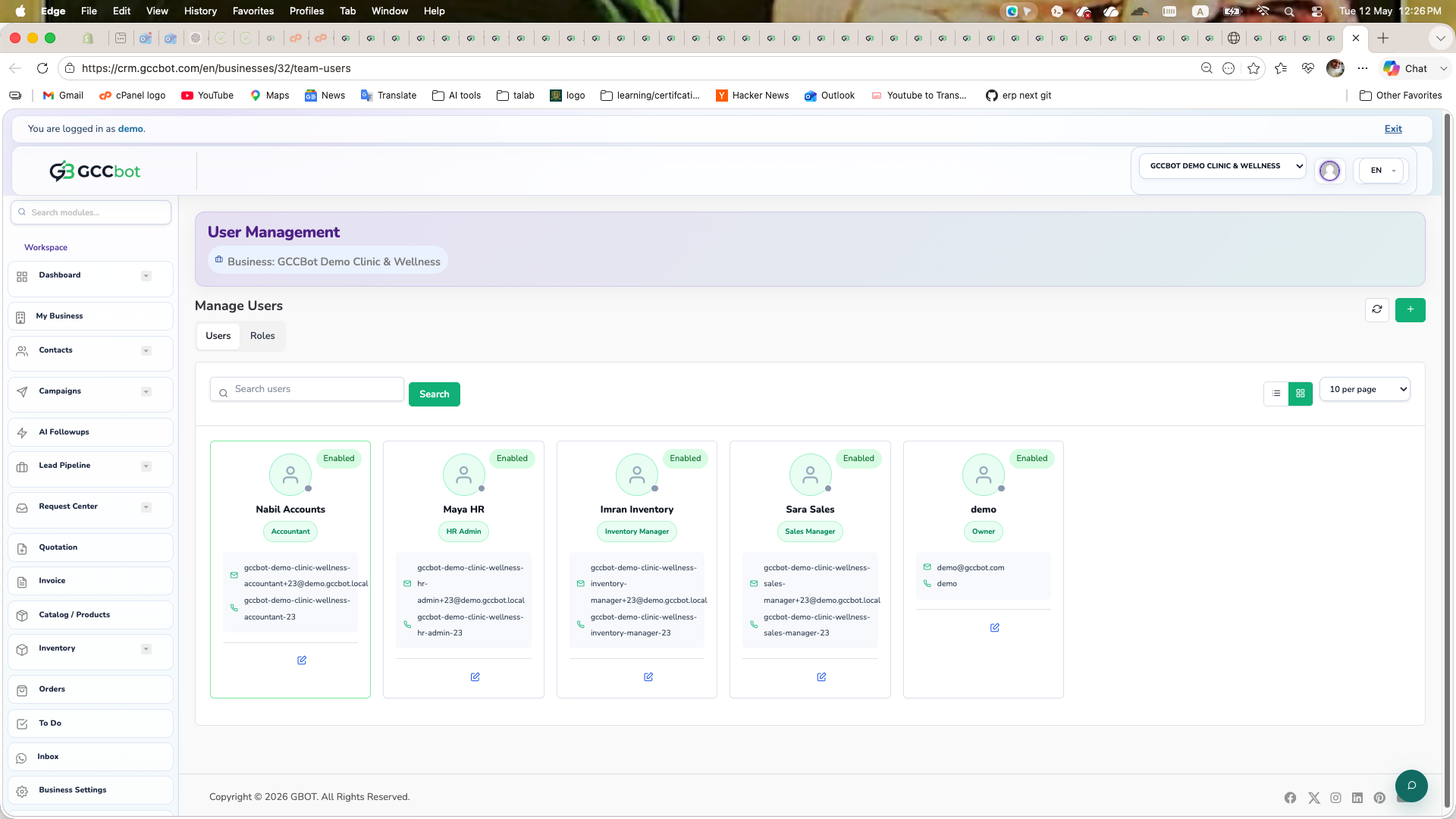
Team Users

Sidebar > Others > Team Users
Team Users dashboard screenshot
Screen preview

Invite and manage team members for a business workspace.

How to use this module
Use Team Users when users ask how to add staff users, invite team members, remove access, or manage user profiles for a business.

Steps:
1. Open Team Users.
2. Add or edit a team user.
3. Assign role/permissions from Roles & Permissions when needed.
4. Save and ask the team member to log in.

Common issue: a user may not see modules until permissions are granted.

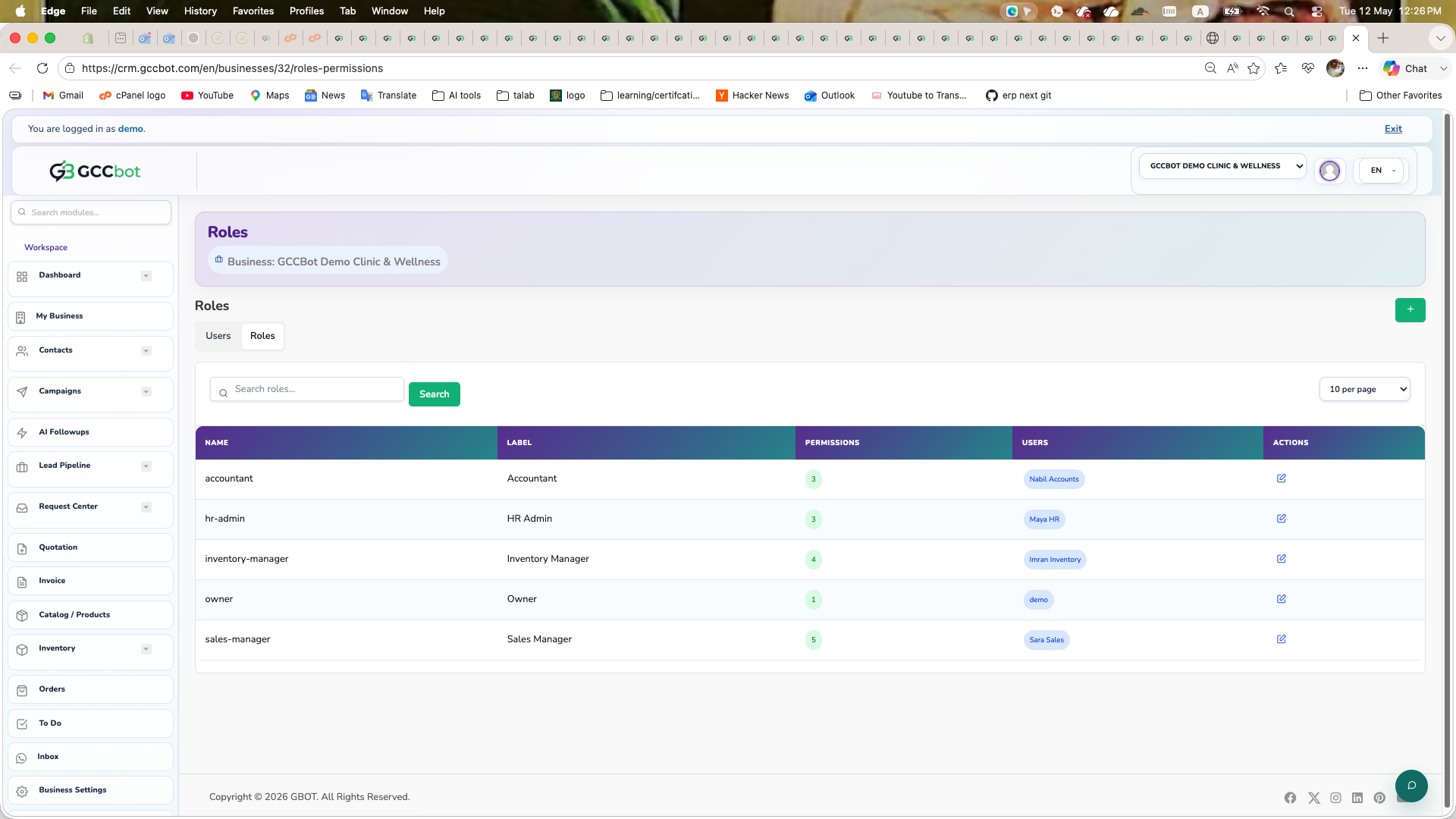
Roles & Permissions

Sidebar > Others > Roles & Permissions
Roles & Permissions dashboard screenshot
Screen preview

Explain why a dashboard feature may not appear for a user.

How to use this module
Use this when users ask why they cannot see a module or option.

Likely reasons:
1. The wrong business is selected.
2. The user's role does not include the module permission.
3. The plan does not include the feature.
4. The feature is business-type specific.
5. The module is hidden in sidebar but accessible from a related workflow.

Guide owners/admins to Roles & Permissions and Membership. Guide normal users to contact the business owner/admin.

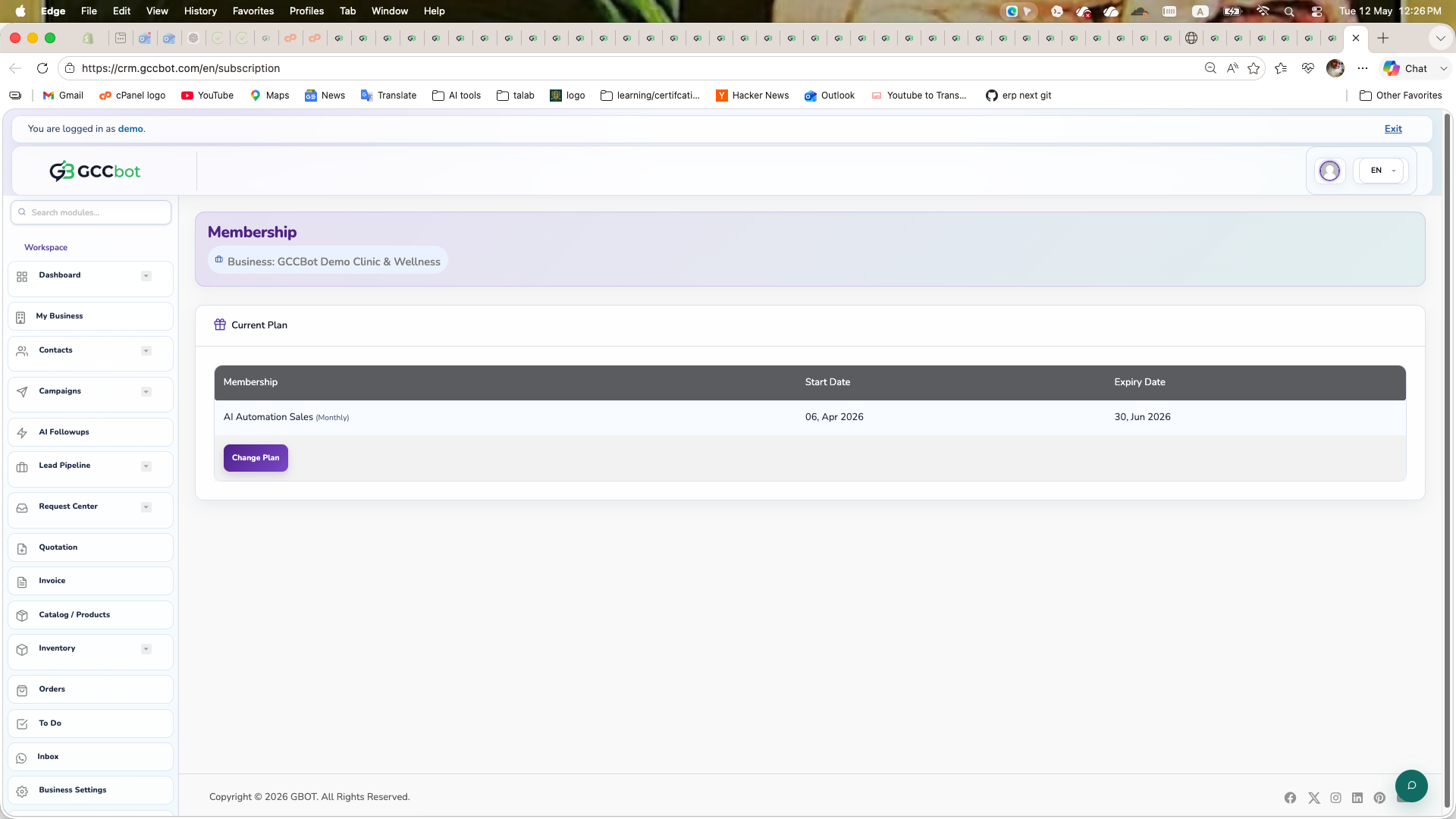
Membership

Sidebar > Others > Membership
Membership dashboard screenshot
Screen preview

View current subscription, plan limits, feature availability, and upgrade options.

How to use this module
Use Membership when users ask about plan, subscription, feature not available, quota, monthly AI messages, or upgrade.

Steps:
1. Open Membership.
2. Review current plan and enabled features.
3. Upgrade or renew if a feature is unavailable.

Common issue: Chatbot, AI calls, automations, quotations, invoices, and hybrid WhatsApp may depend on plan settings.

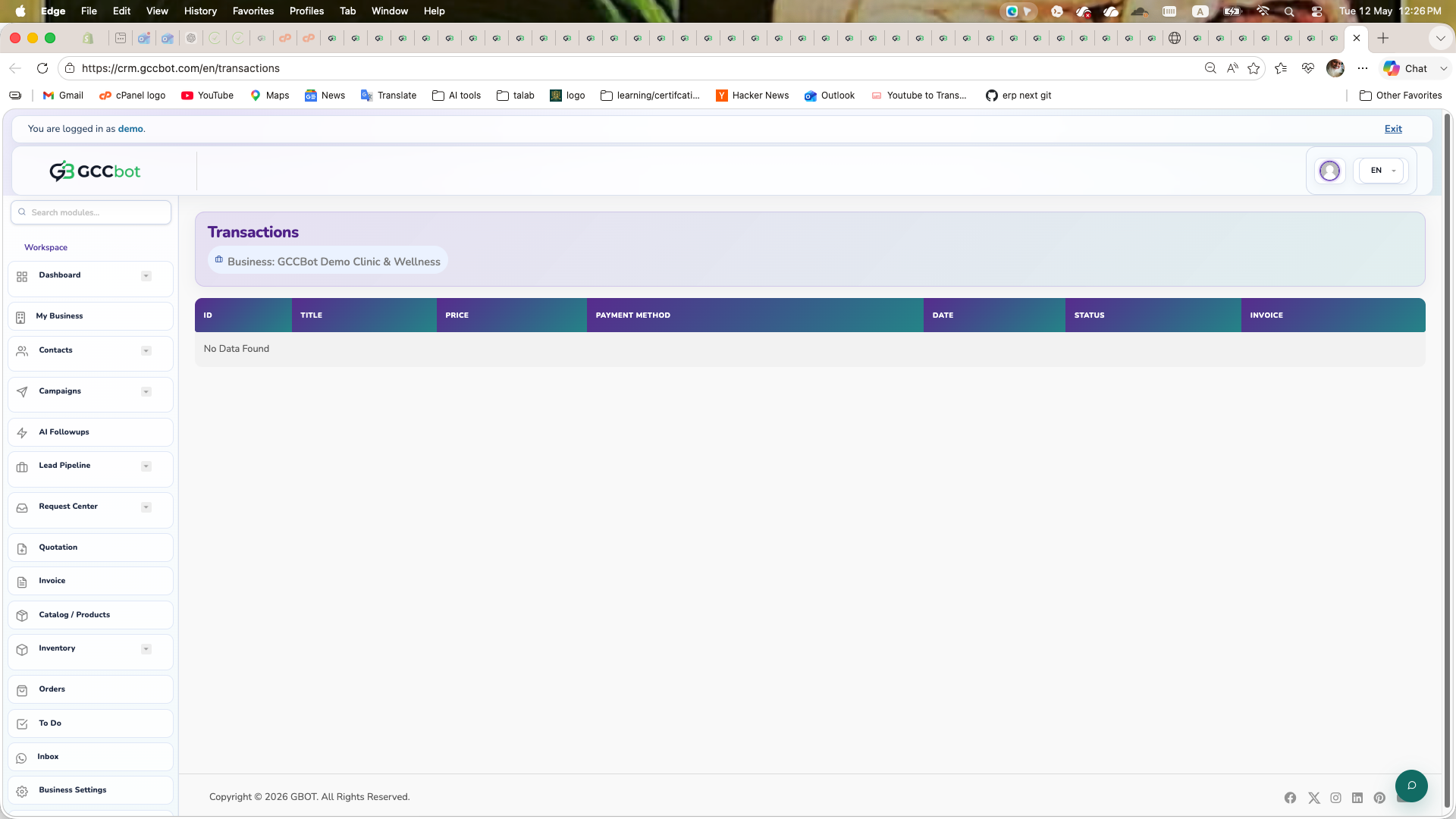
Transactions

Sidebar > Others > Transactions
Transactions dashboard screenshot
Screen preview

Use Transactions from the dashboard sidebar.

How to use this module
Where to go:
Sidebar > Others > Transactions.

Basic steps:
1. Open Transactions from the sidebar.
2. Select the correct business if the page asks for business context.
3. Review the available list, cards, or settings.
4. Create, edit, manage, or report from the available page actions according to your role permissions.

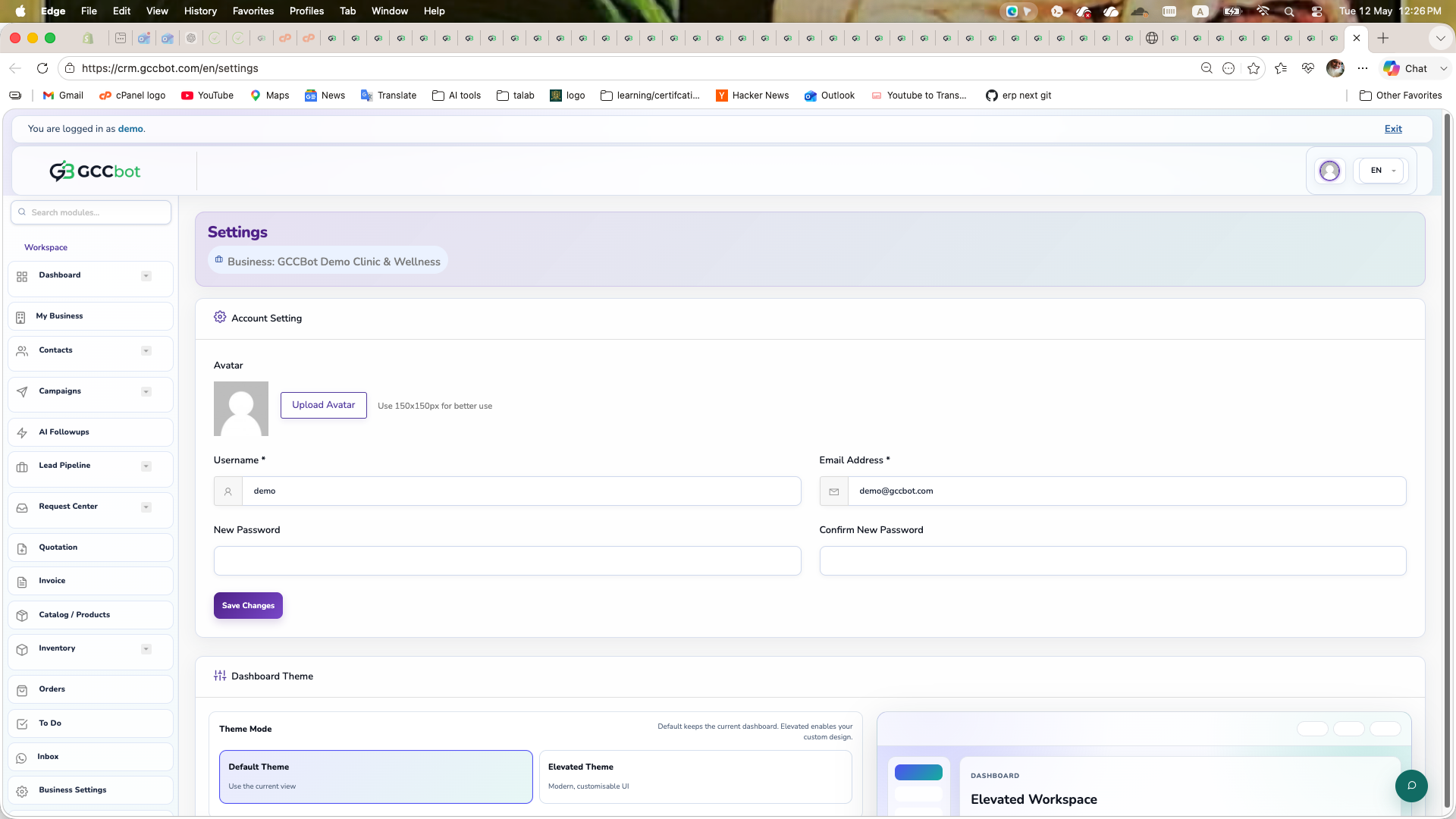
Account Settings

Sidebar > Others > Account Settings
Account Settings dashboard screenshot
Screen preview

Manage user account profile, password, and account-level settings.

How to use this module
Use Account Settings when users ask how to edit their personal profile, password, account details, or login settings.

Steps:
1. Open Account Settings.
2. Update profile or password fields.
3. Save changes.

Common issue: business profile is separate from account profile. For business logo/address/currency, use Business Settings.

Logout

Sidebar > Others > Logout

Use Logout from the dashboard sidebar.

How to use this module
Where to go:
Sidebar > Others > Logout.

Basic steps:
1. Open Logout from the sidebar.
2. Select the correct business if the page asks for business context.
3. Review the available list, cards, or settings.
4. Create, edit, manage, or report from the available page actions according to your role permissions.

Extra Step-by-Step Guides

These guides are managed from the admin manual content area and can include images or videos.

Add a Business

Create your first business workspace before adding products, contacts, and campaigns.

Overview

This creates the main workspace where your CRM data will be stored.

Steps
  1. Open Dashboard > Add Business.
  2. Enter business name, logo, contact details, and business type.
  3. Save and select the business as current context.

Add Products in Catalog

Build your catalog for sales, AI recommendations, quotations, and invoice flow.

Manual Product Entry
  1. Go to Products / Catalog.
  2. Create categories and optional subcategories.
  3. Click Add Product and fill name, price, description, and image.
  4. Save and verify the item is active.
Bulk Import Option
  1. Download Sample Excel from Catalog tools.
  2. Fill category, item name, price, and description columns.
  3. Import the file and validate imported records.

Phone Books Setup

Organize contacts into phone books for campaign targeting and pipeline workflows.

Create and Use Phone Books
  1. Open Phone Books module.
  2. Create a new phone book for each audience segment.
  3. Import or add contacts manually.
  4. Use phone books while sending campaigns and automation flows.

Normal Campaign vs AI Campaign

Choose the right campaign type depending on your objective.

Difference

Normal Campaign sends your exact prepared message. AI Campaign can personalize message content, sequencing, and optimization using AI settings.

When to Use
  1. Use Normal Campaign for fixed announcements and strict templates.
  2. Use AI Campaign for smart outreach, personalization, and lead quality optimization.
Send Normal Campaign
  1. Go to Campaigns.
  2. Choose audience from phone books.
  3. Write message, review, and send.
Send AI Campaign
  1. Go to AI Campaign module.
  2. Define objective, audience, and guardrails.
  3. Review AI preview and launch campaign.

Lead Pipeline: How It Works

Track each lead stage from first contact to conversion.

Pipeline Flow
  1. Open Lead Pipeline
  2. Create stages for your sales process.
  3. Move leads between stages based on interaction outcome.
  4. Use notes, reminders, and follow-up tasks for every lead.

WhatsApp Channel and QR Connection

Connect WhatsApp and activate message flow through QR setup.

QR Setup via gccbot.com
  1. Open gccbot.com/user in browser.
  2. Sign up or log in with your assigned account.
  3. Ask admin to activate your account if needed.
  4. Open profile menu and choose Add New WhatsApp by QR.
  5. Scan the QR code from your WhatsApp app to connect.
In CRM

After QR connection, return to Marketing & WhatsApp modules and verify channel status is connected.

Business Settings and Currency Setup

Configure business profile, currency, and defaults before going live.

Settings Checklist
  1. Open Business Settings
  2. Set business identity details and contact info.
  3. Set currency and basic financial defaults.
  4. Save and verify invoice/quotation output values.

Multiple Businesses Setup

Manage more than one business from the same account context.

Add Multiple Businesses
  1. Use Add Business to create each business workspace.
  2. Switch active business from the business switcher.
  3. Verify catalog, contacts, and campaigns in the correct business context.

WhatsApp AI and Chatbot Configuration

Enable AI assistant behavior for automated responses and routing.

Configure WhatsApp AI
  1. Open WhatsApp AI module.
  2. Configure business summary, offers, and tone.
  3. Set knowledge priorities and sync sales knowledge if available.
  4. Set handover rules for manual agent takeover.

Automation and Payload JSON

Create automation flows and attach JSON payload actions when required.

Automation Basics
  1. Open Automations module.
  2. Choose trigger, conditions, and actions.
  3. Test the flow using sample contacts.
  4. Activate automation after validation.
Payload JSON Note

For payload-based actions, paste valid JSON payload in the action settings and verify response mapping before enabling.

وكيل المكالمات بالذكاء الاصطناعي

Set up AI call handling for outbound and inbound workflows.

Configure AI Call Agent
  1. Open AI Call Agent settings.
  2. Set greeting script, fallback behavior, and handover rules.
  3. Run test calls and review call logs.
  4. Enable for production after test validation.

Troubleshooting

Use these checks before contacting support.

Menu is missing

Check selected business, role permissions, plan membership, and whether the feature opens from a related workflow.

WhatsApp campaign is not sending

Check WhatsApp channel connection, audience numbers, unsubscribed/excluded contacts, and message templates.

Chatbot is not replying

Check active WhatsApp channel, chatbot mode, AI provider, plan quota, Inbox manual mode, and bot-disabled contacts.

Request form is not visible in WhatsApp

Check Active status, Show in WhatsApp, selected business, WhatsApp channel, and chatbot menu setup.

Inventory stock is wrong

Check warehouses, opening stock, stock entries, adjustments, transfers, and fulfillment reservations.

Staff user cannot access a feature

Open Roles & Permissions, enable the required permissions, save, then ask the user to refresh or log in again.

No guide sections match your search.

ملفات تعريف الارتباط

يستخدم هذا الموقع ملفات تعريف الارتباط لضمان حصولك على أفضل تجربة على موقعنا. سياسة ملفات تعريف الارتباط

موافق